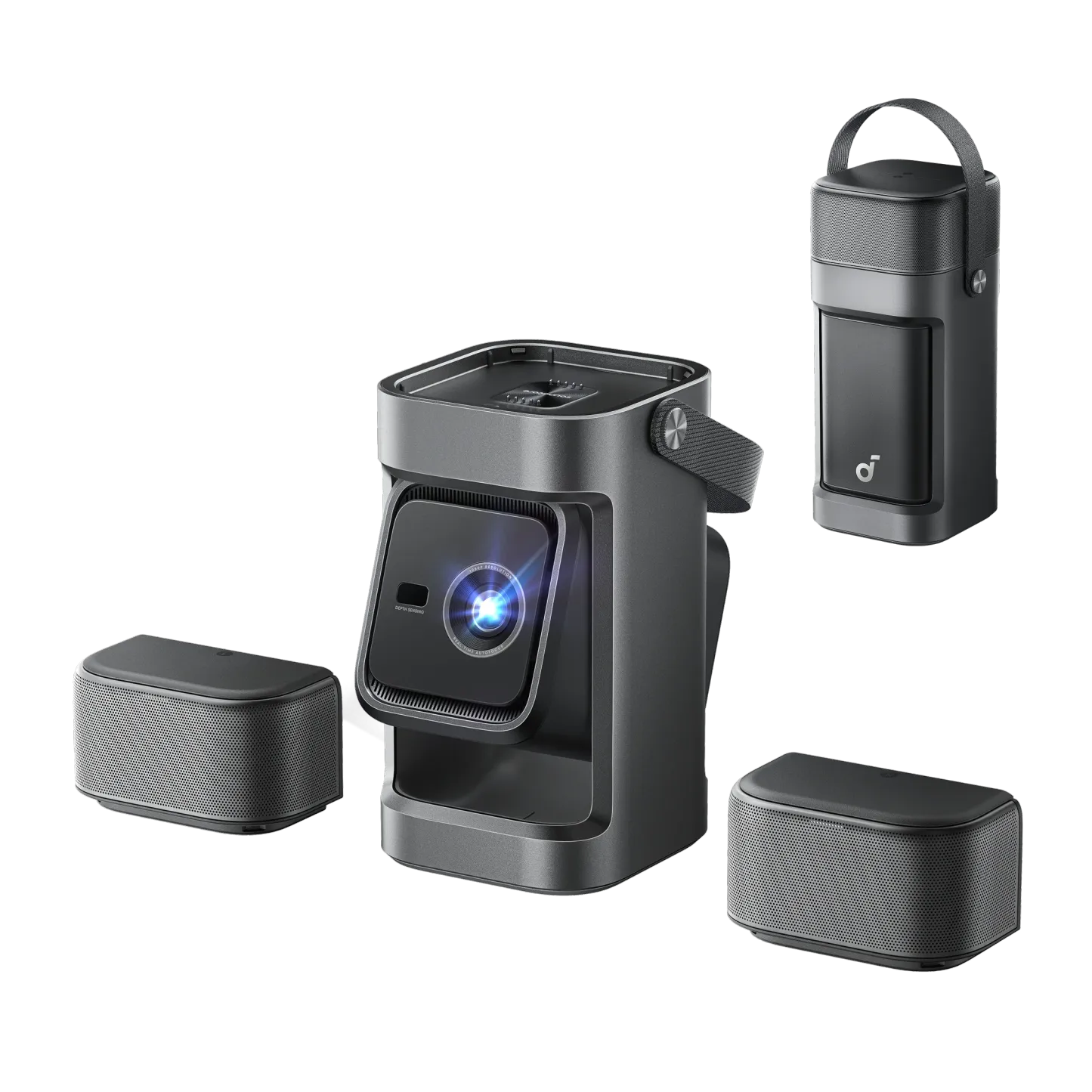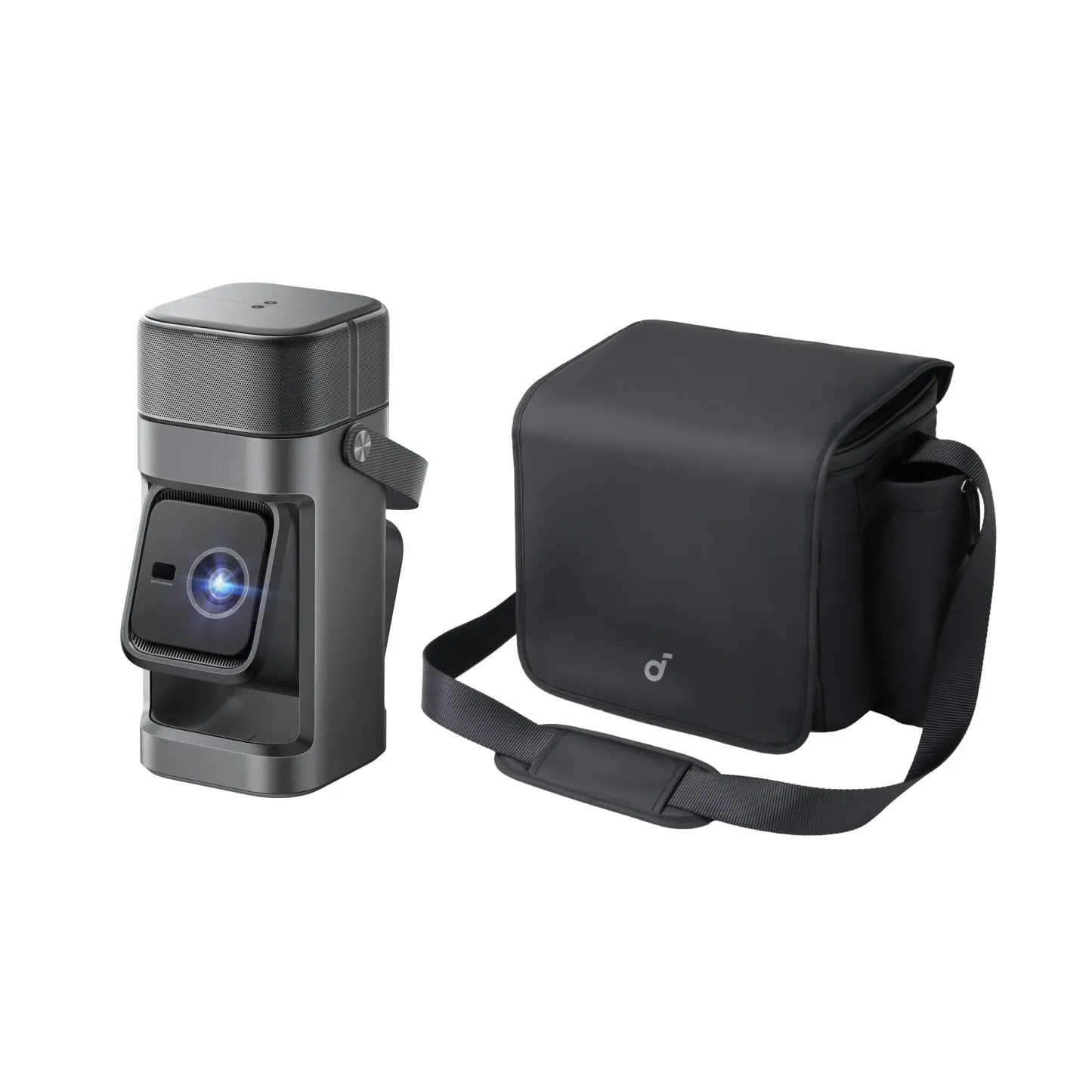
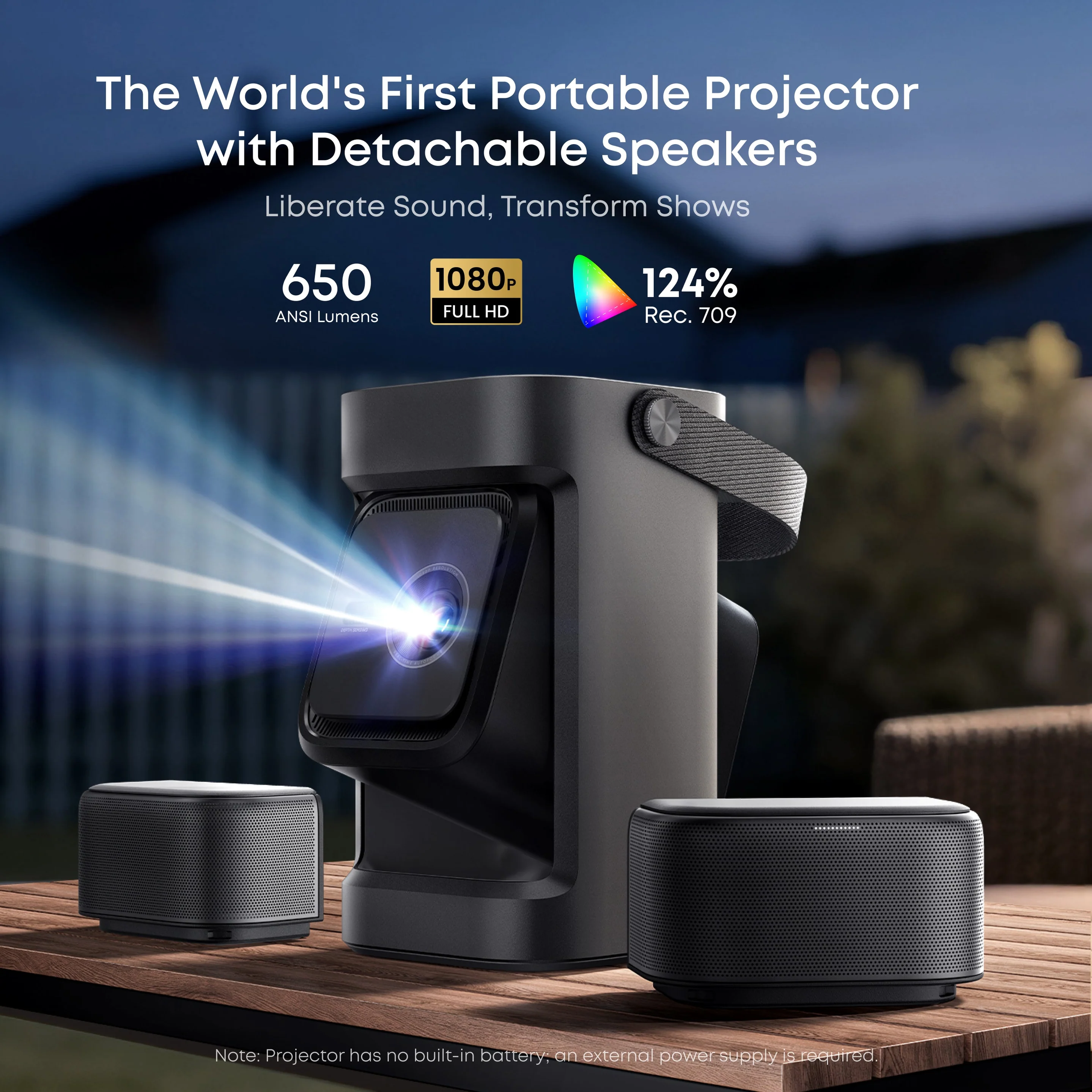
soundcore Nebula P1 | World's First Portable Projector with Detachable Speakers
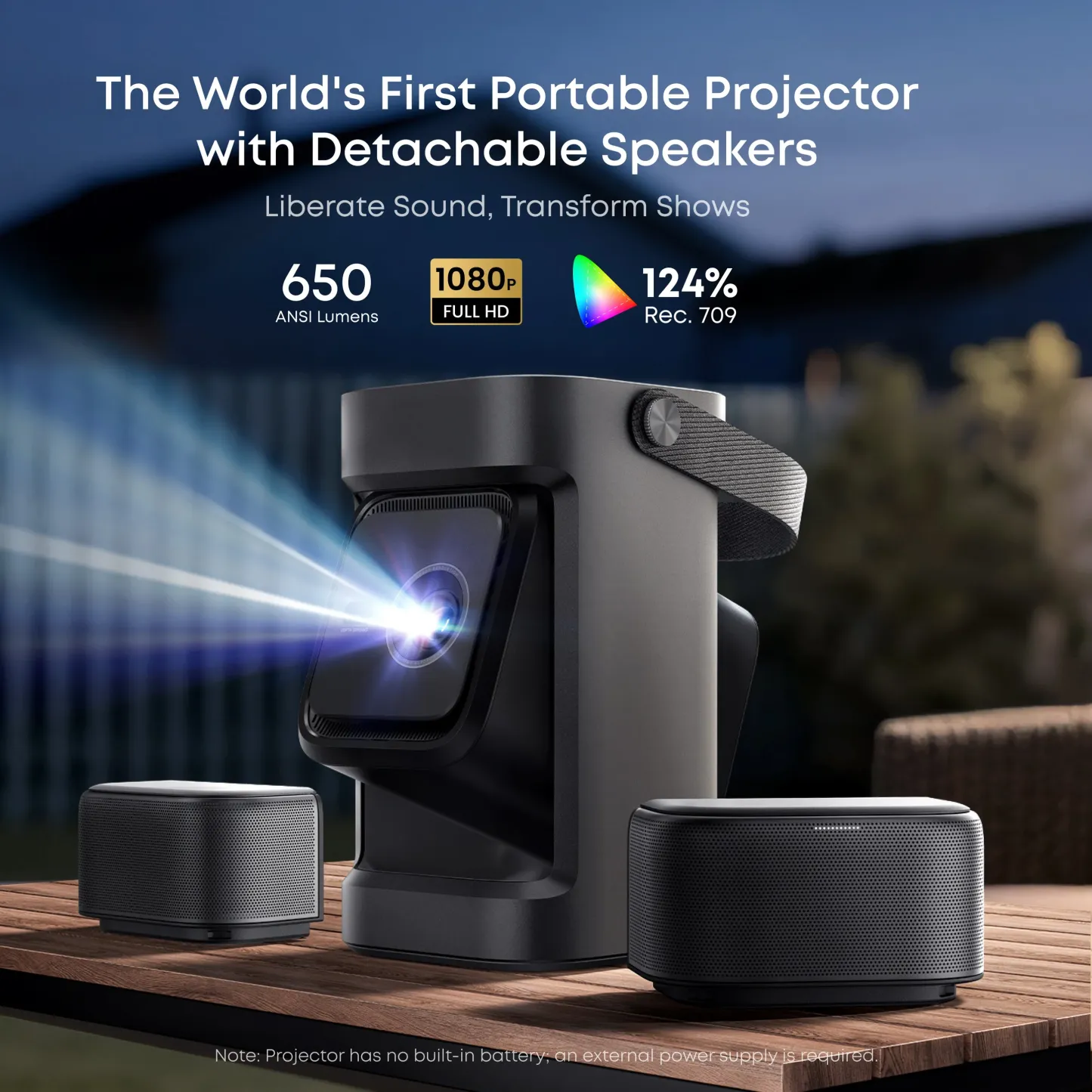
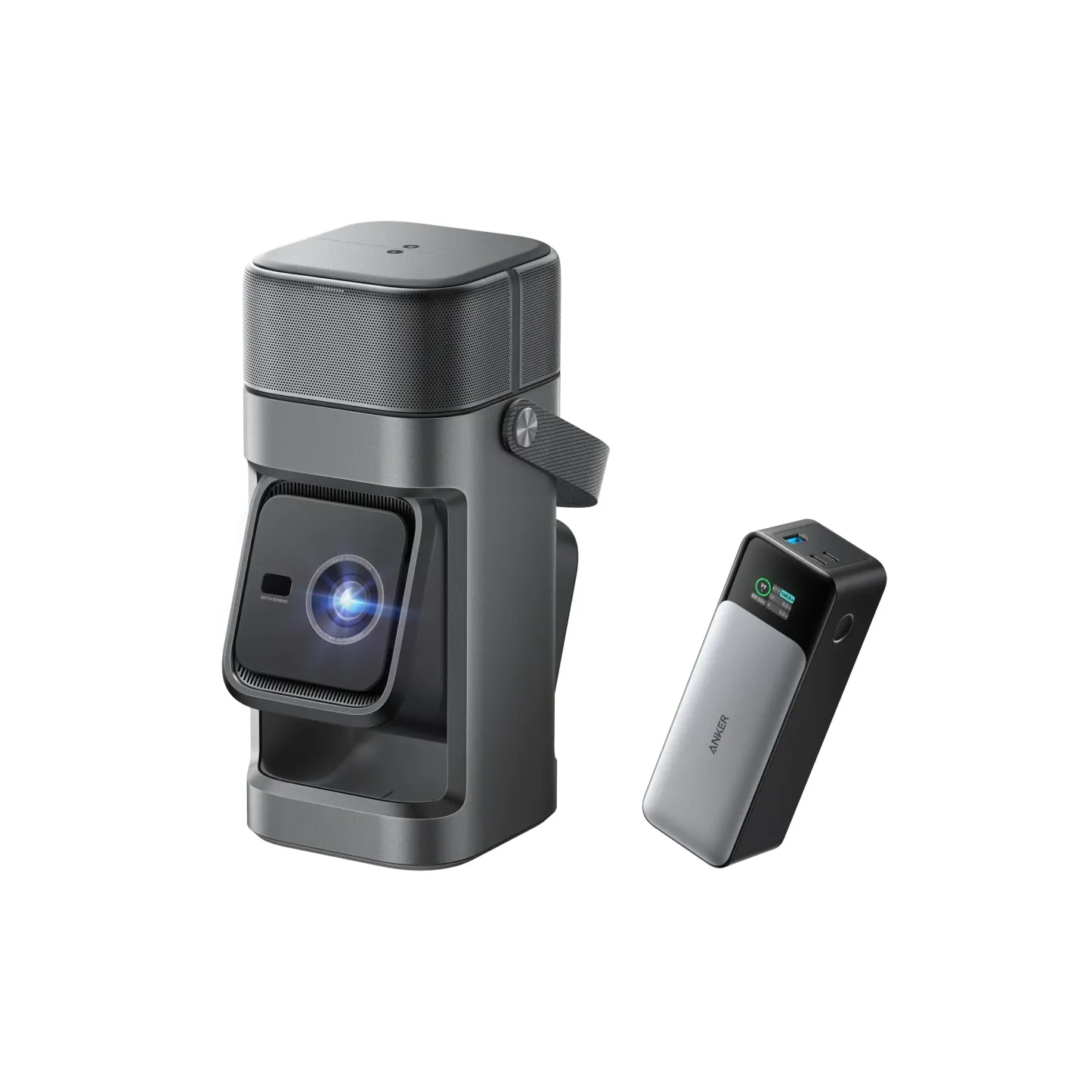
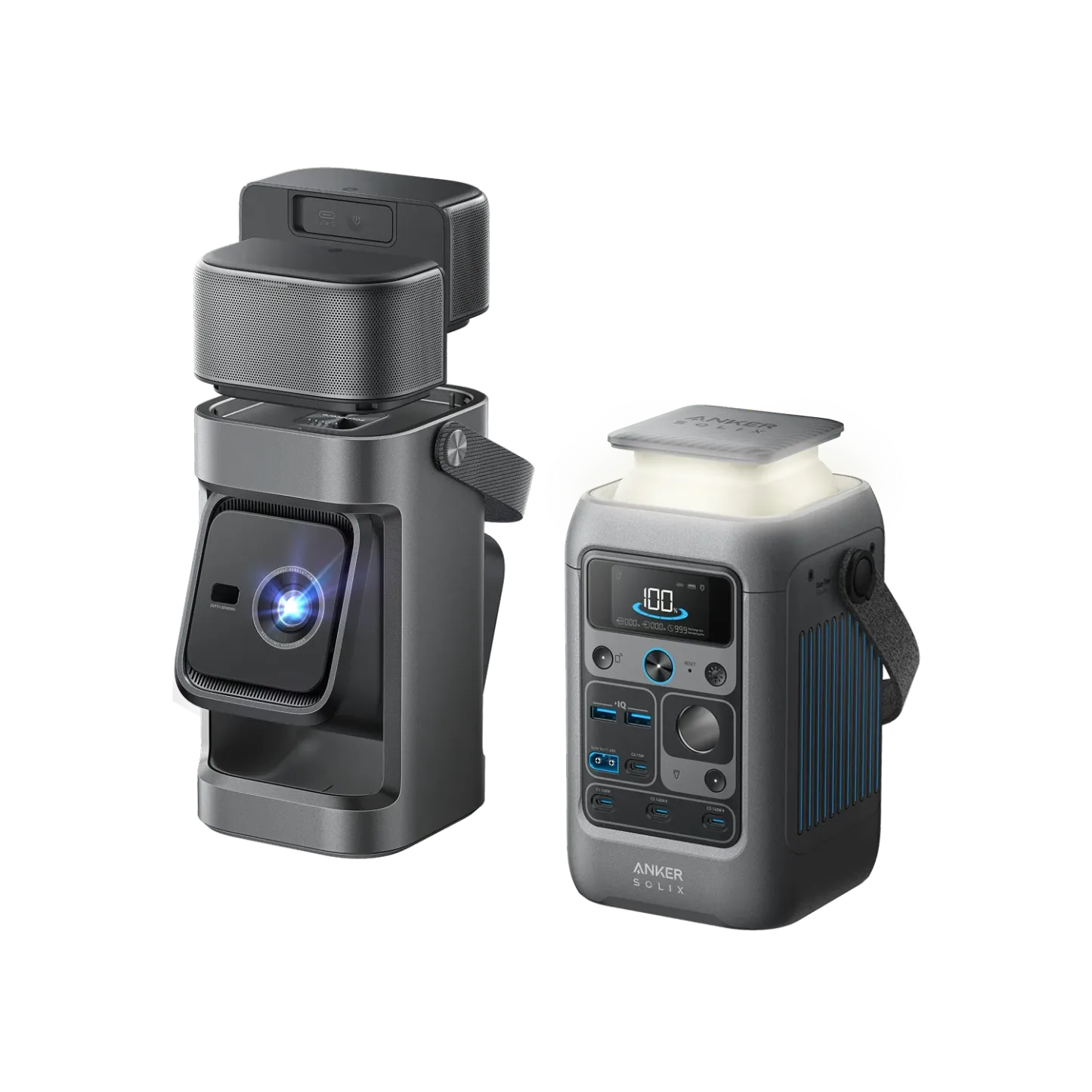
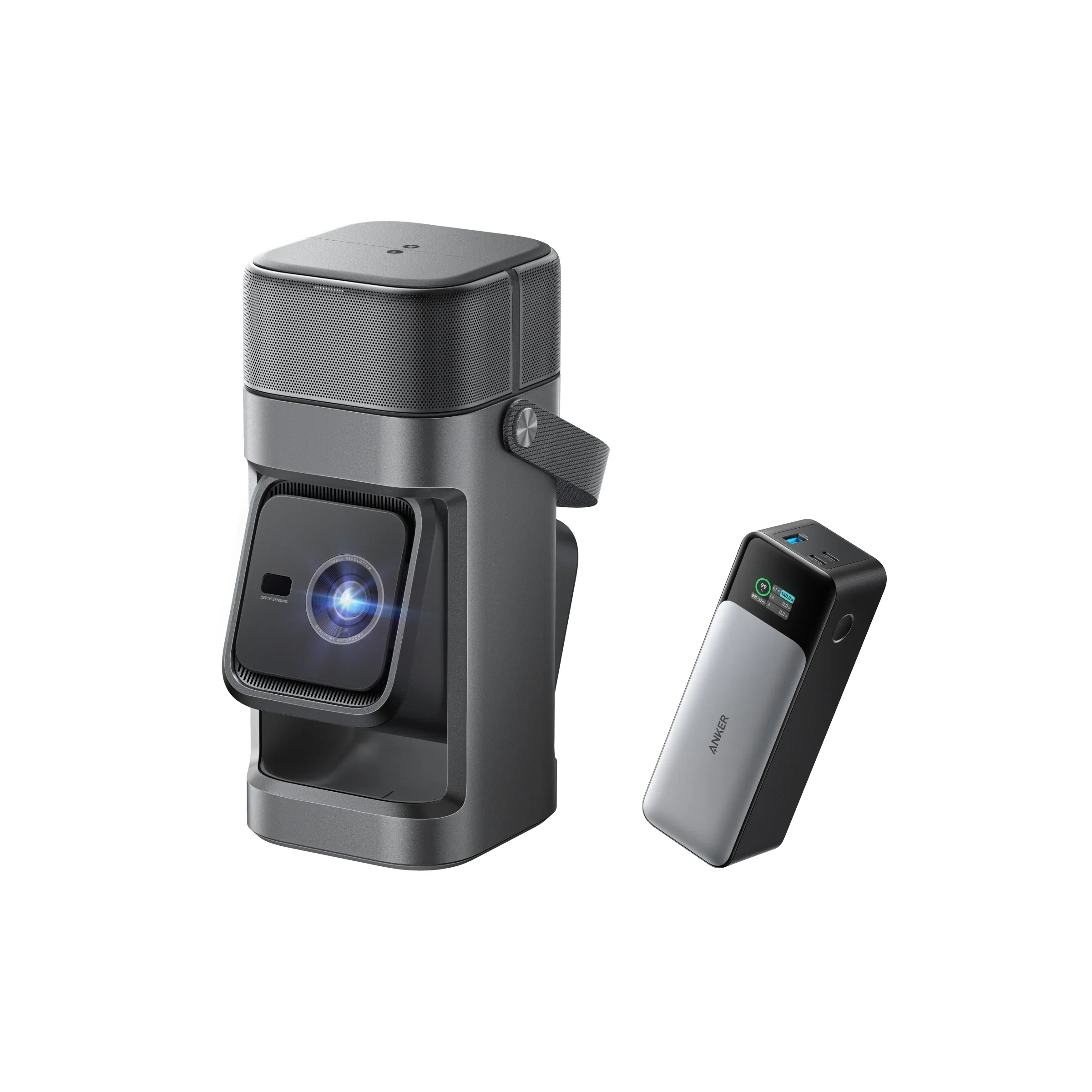
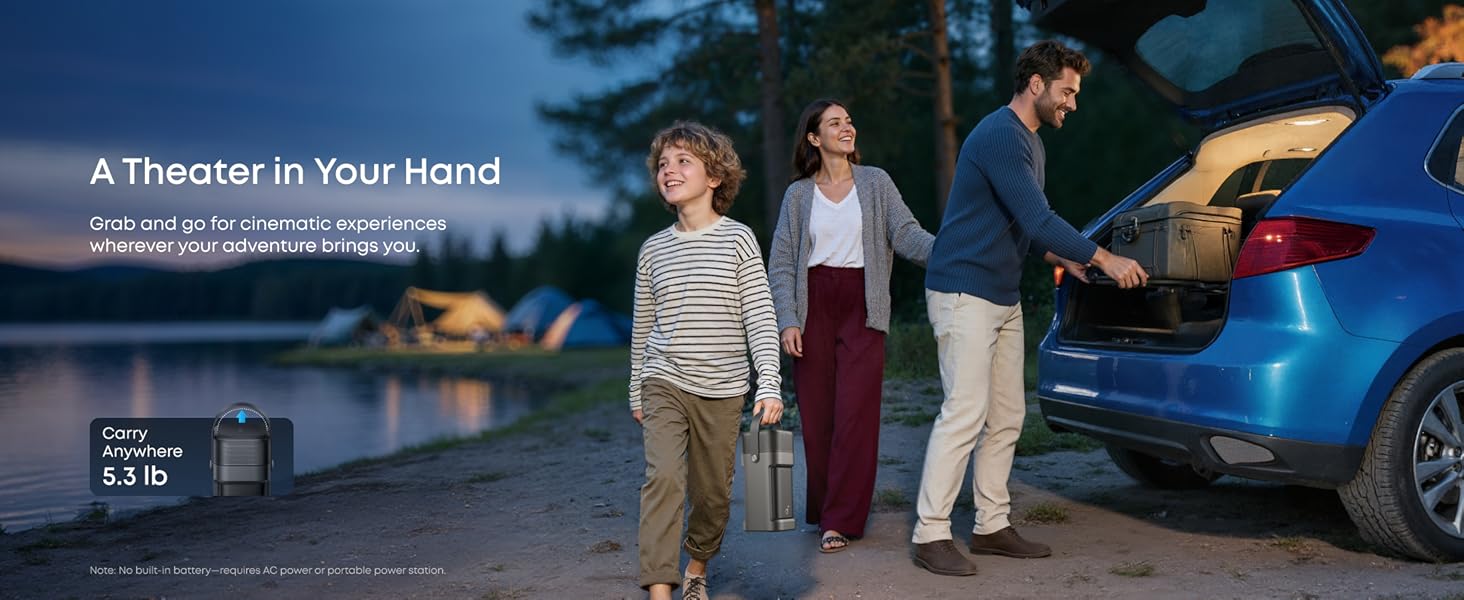
Note: Projector has no built-in battery; an external power supply is required.
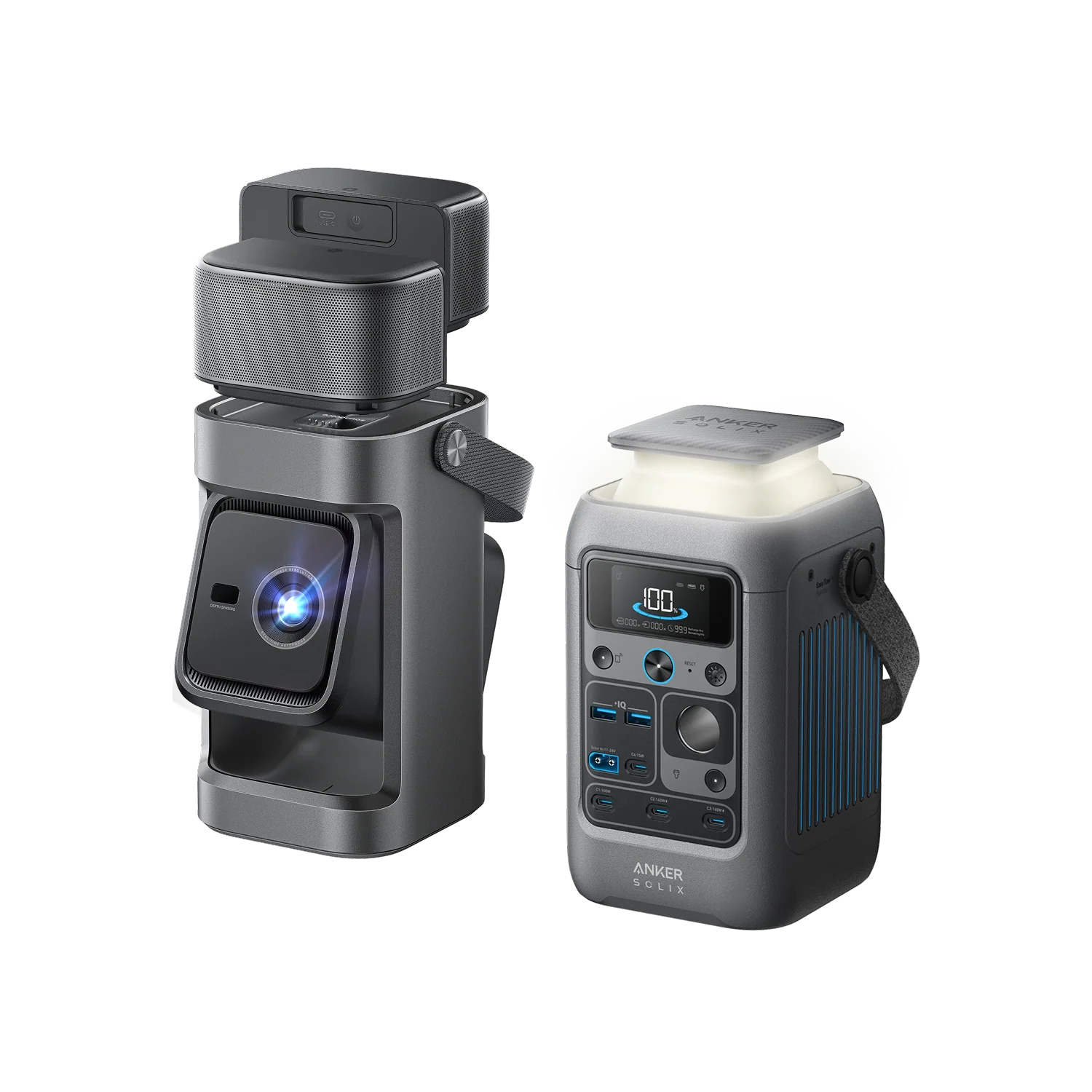
Bundle Benefit: Anker SOLIX C300 DC Portable Power Station — powers your P1 projector for 3.5 - 3.7 hours (with all features running), whether in the backyard, outdoors, or camping.
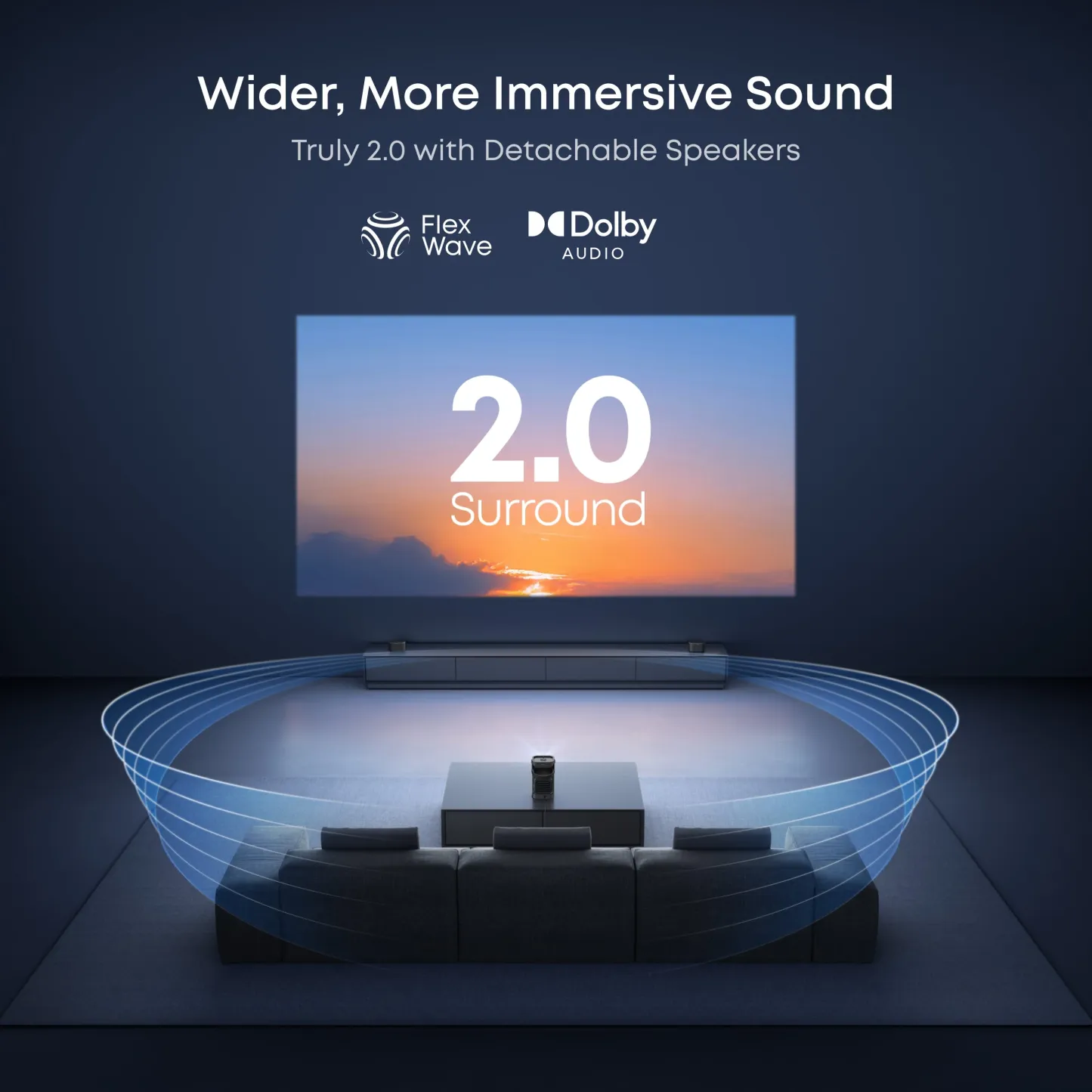
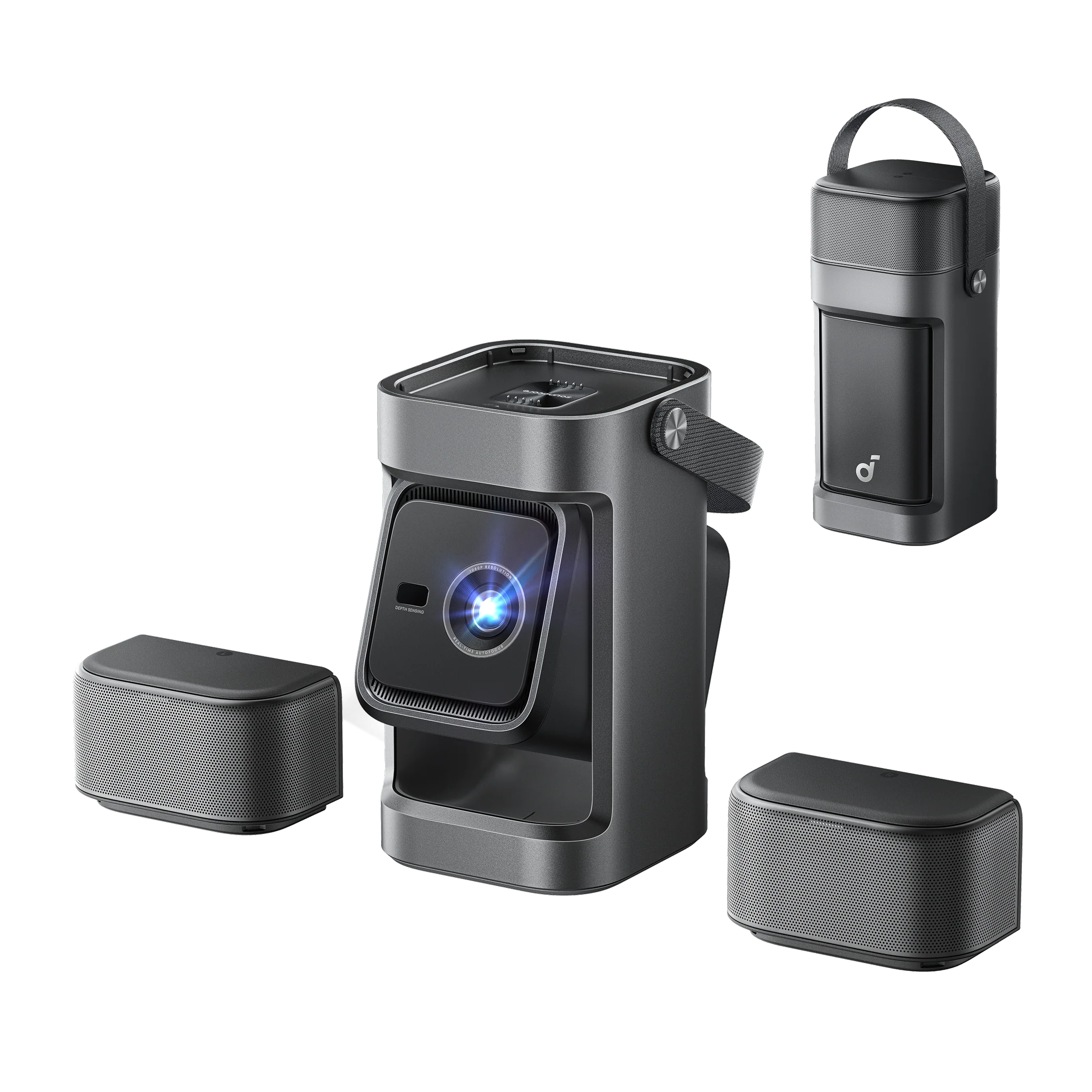
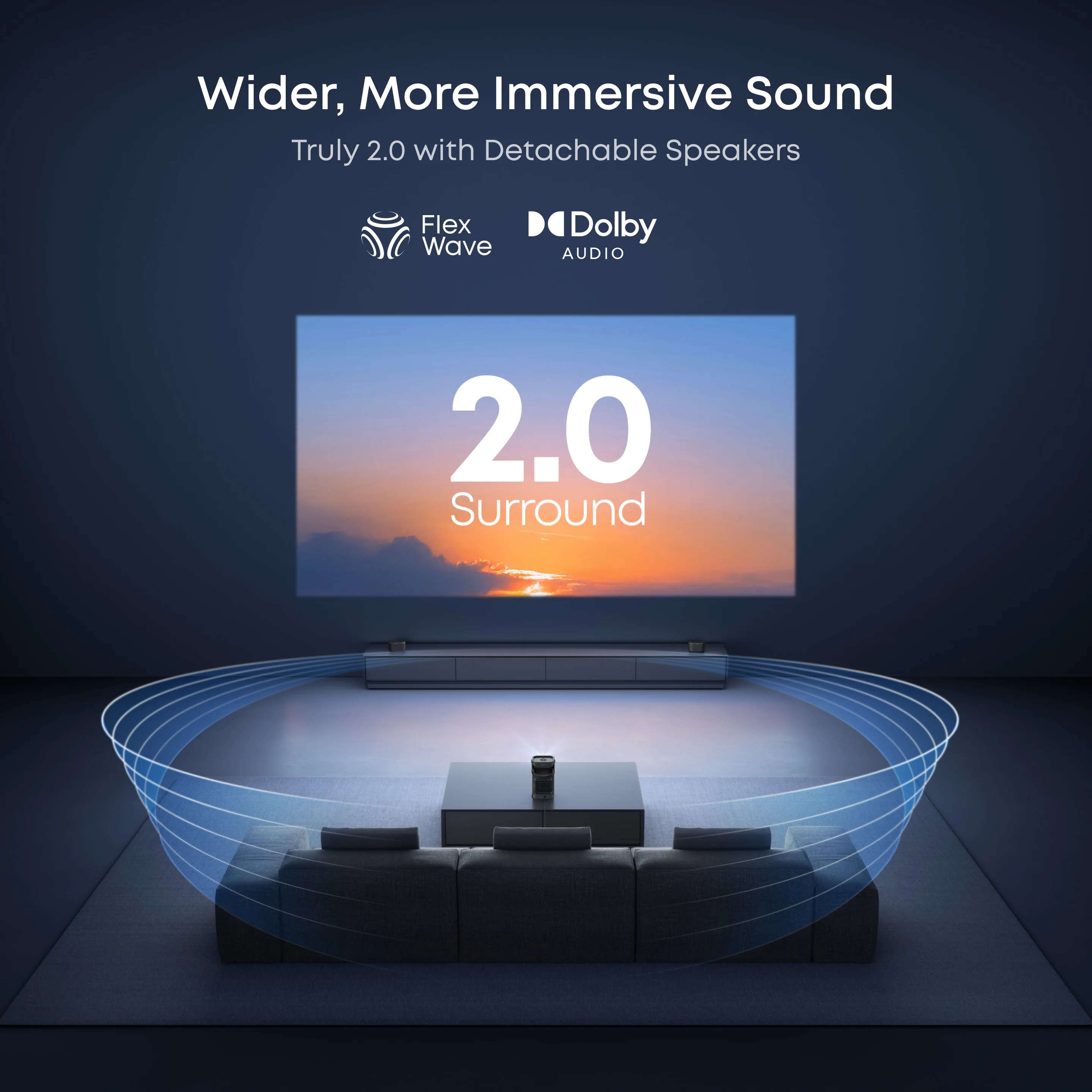
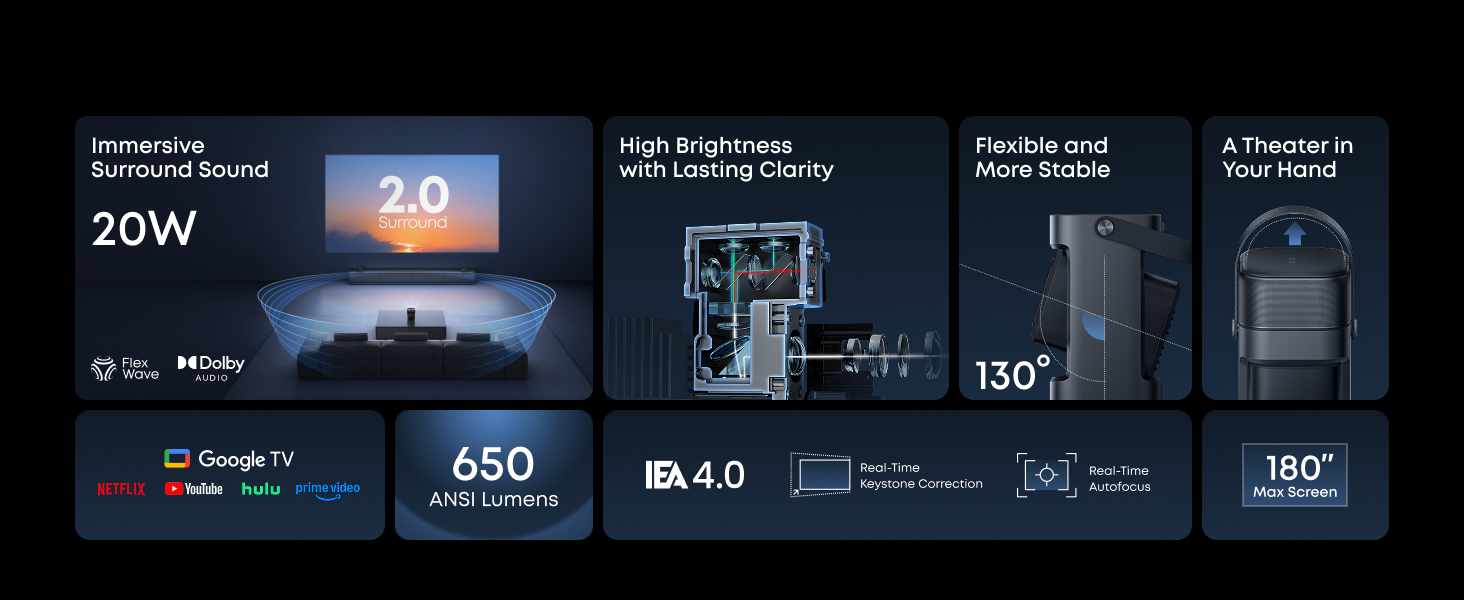
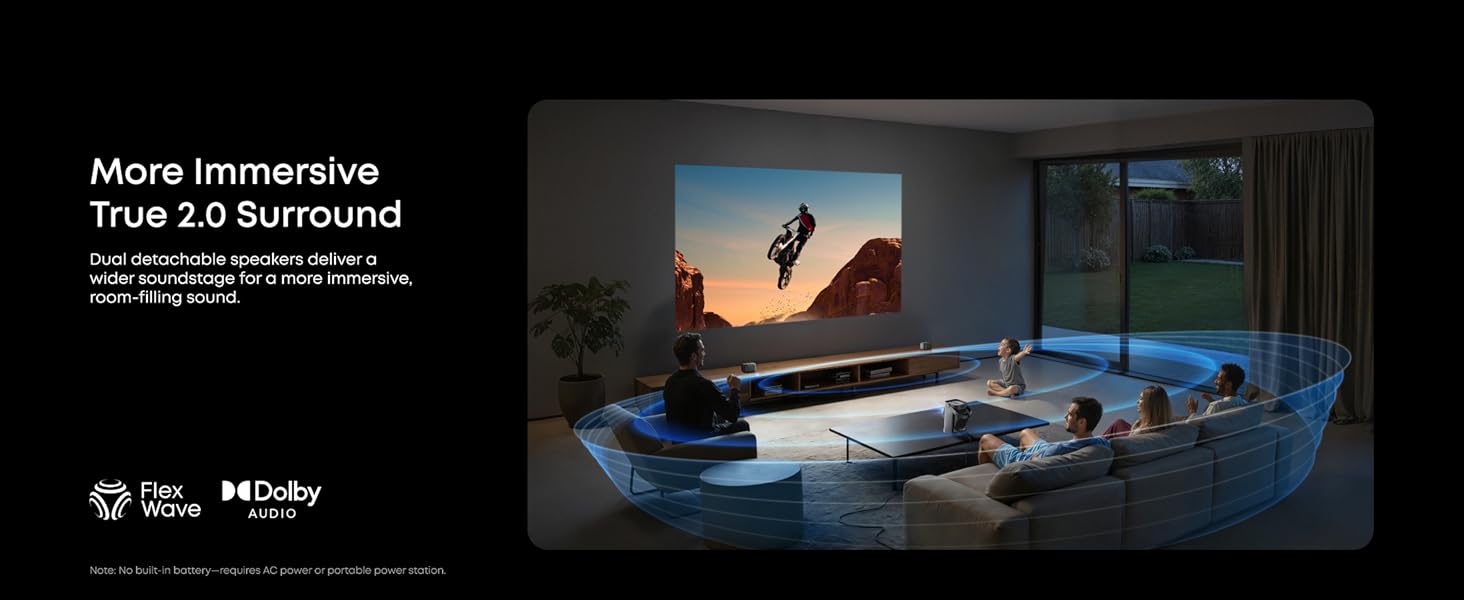
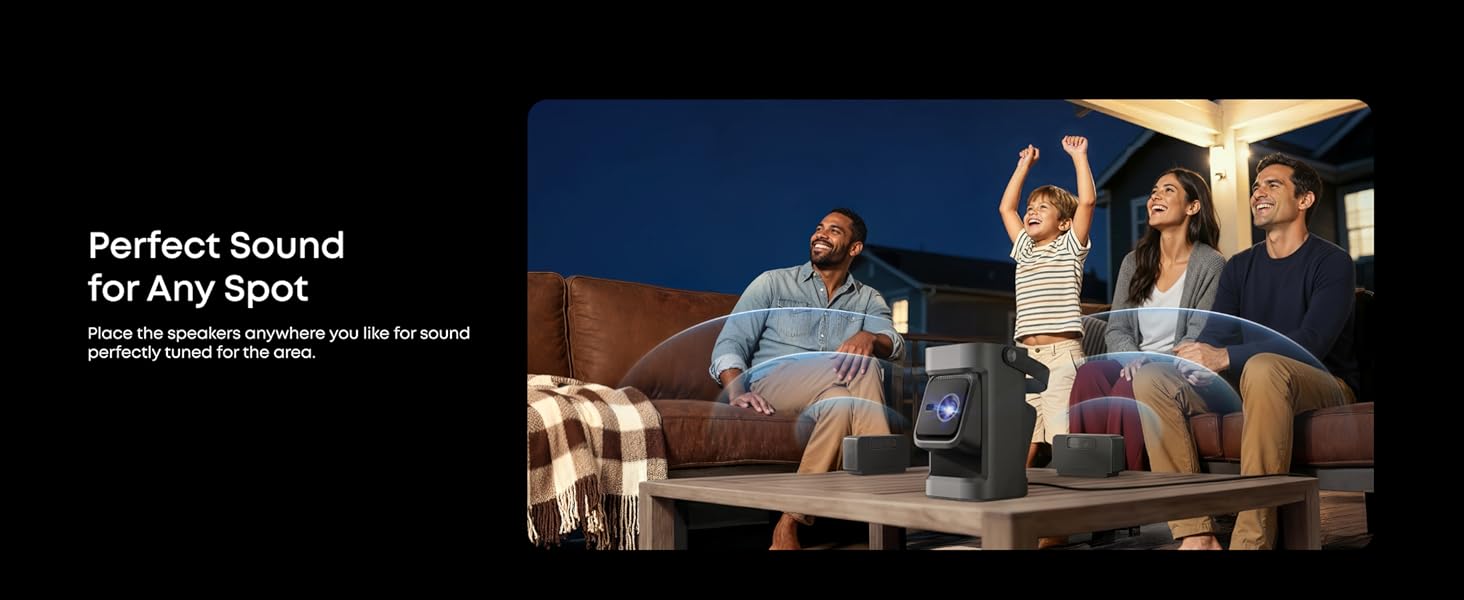
More Immersive True 2.0 Surround Sound: Dual detachable speakers deliver a wider soundstage for a more room‑filling, immersive sound. Flexibly place the speakers anywhere you like for sound perfectly tuned to your spot.
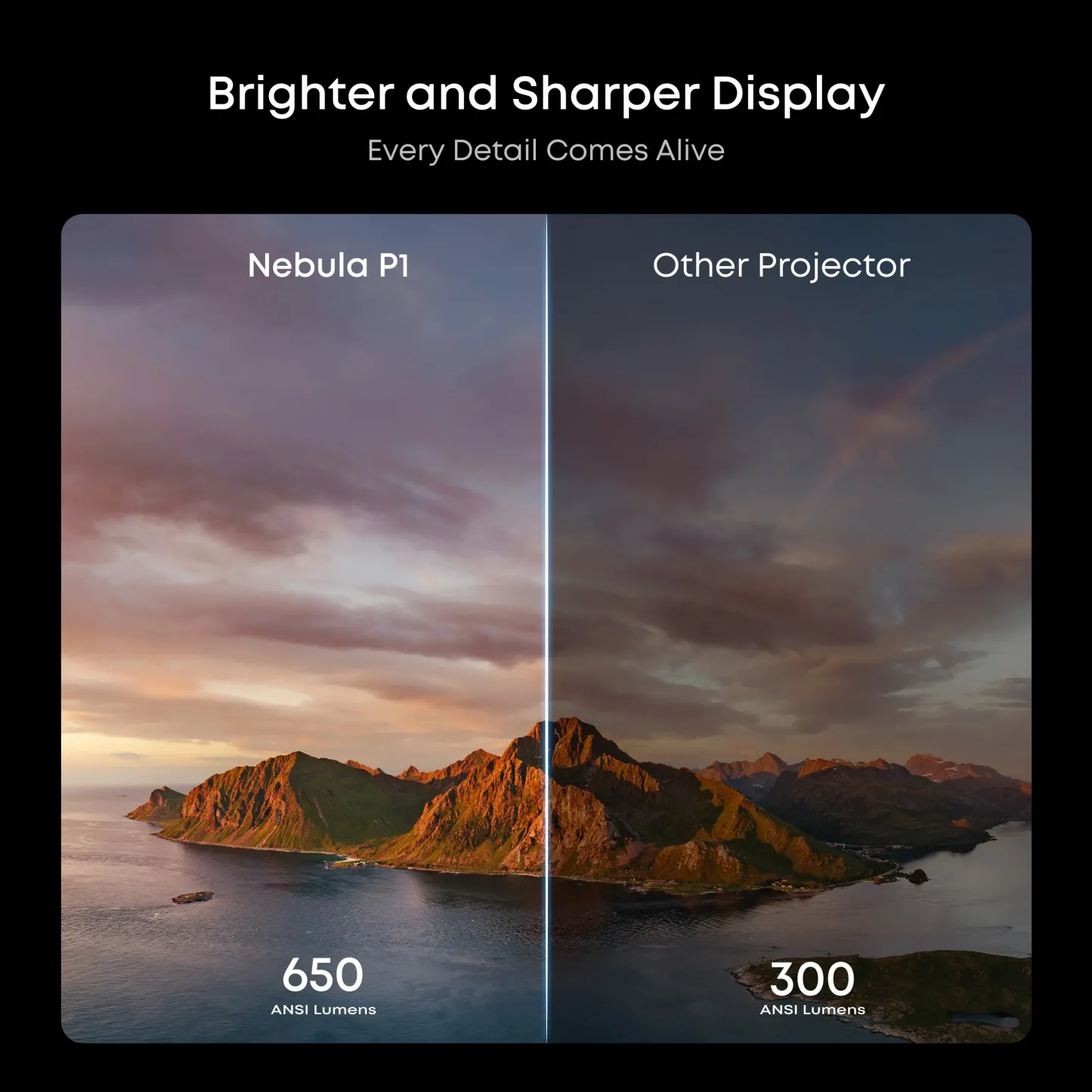
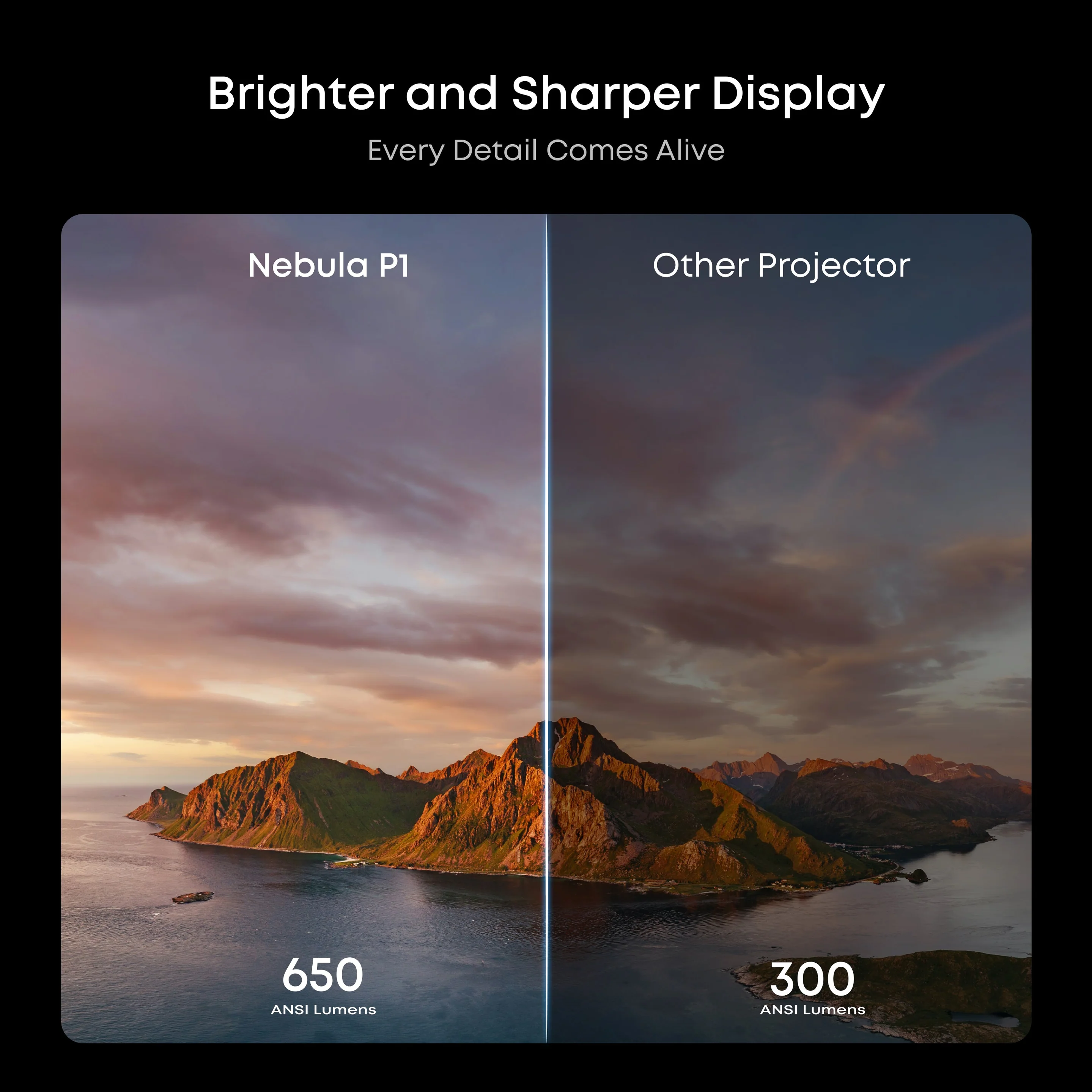
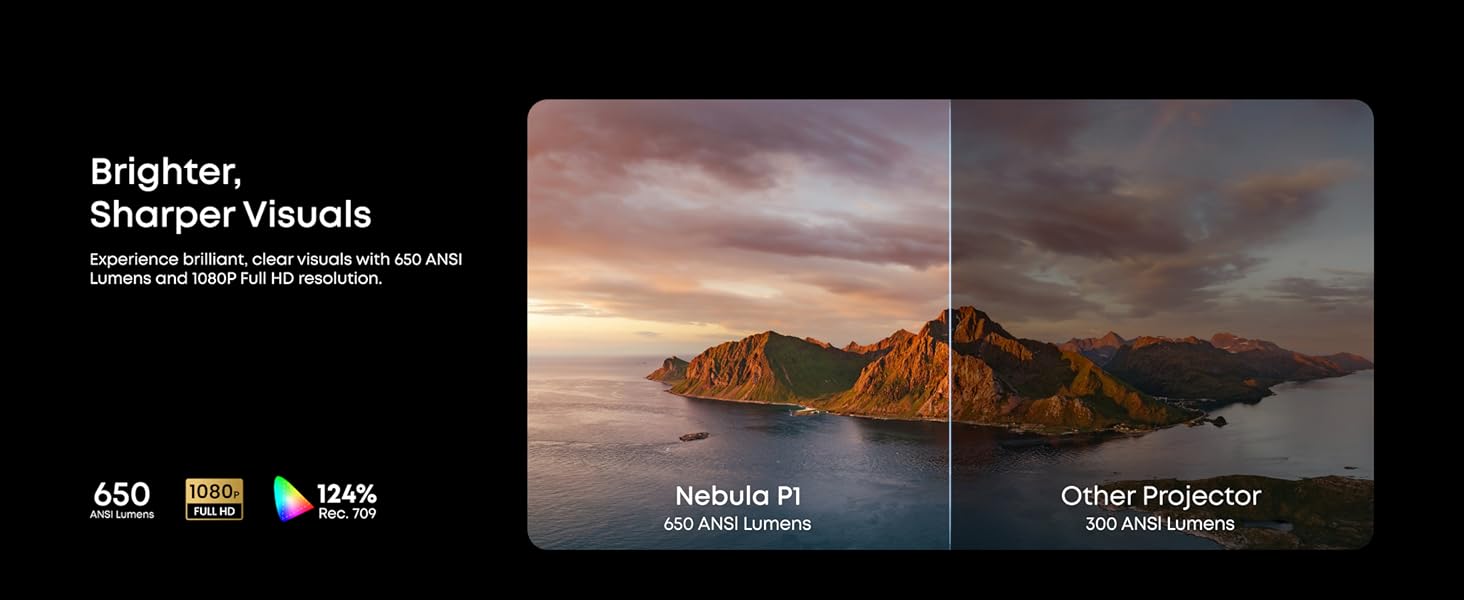
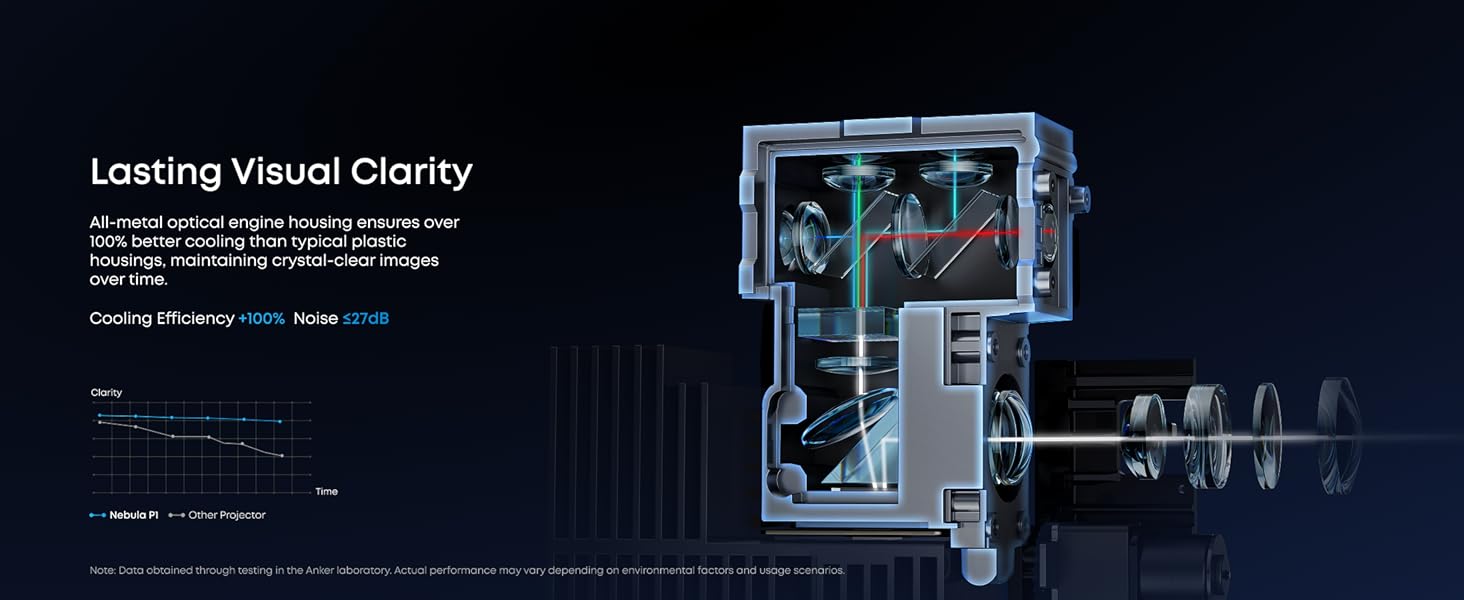
Exceptional Brightness and Lasting Clarity: Enjoy brilliant, clear visuals with 650 ANSI Lumens and 1080P Full HD resolution. Maintains consistently crystal-clear images over time.
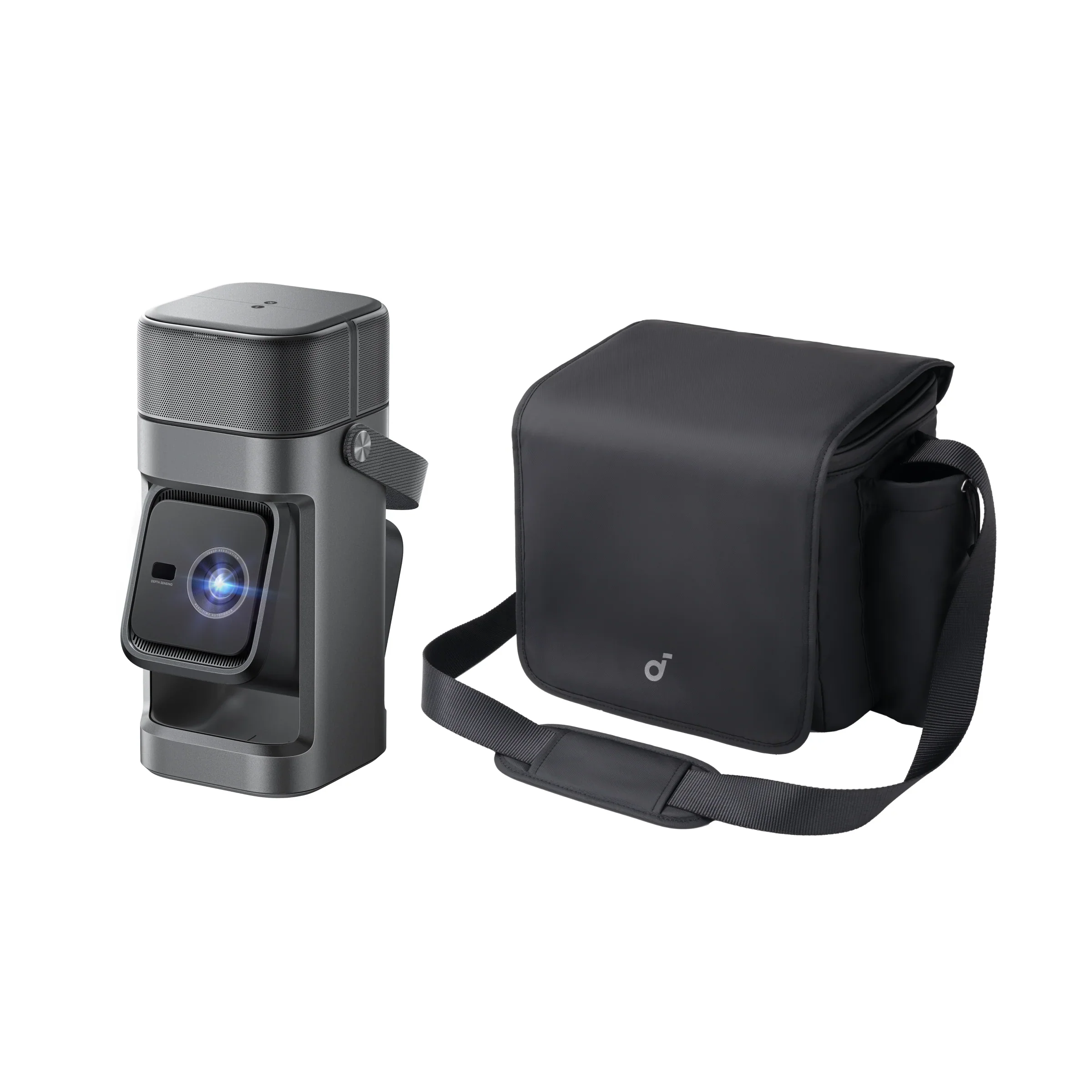
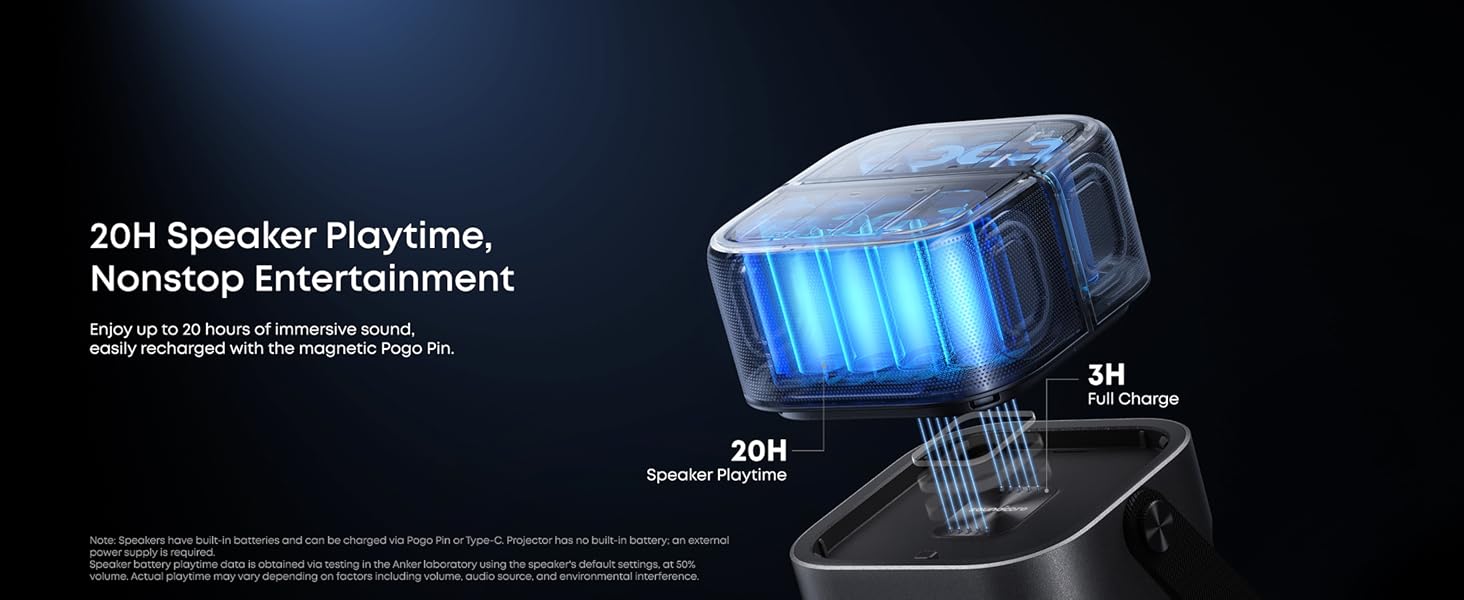
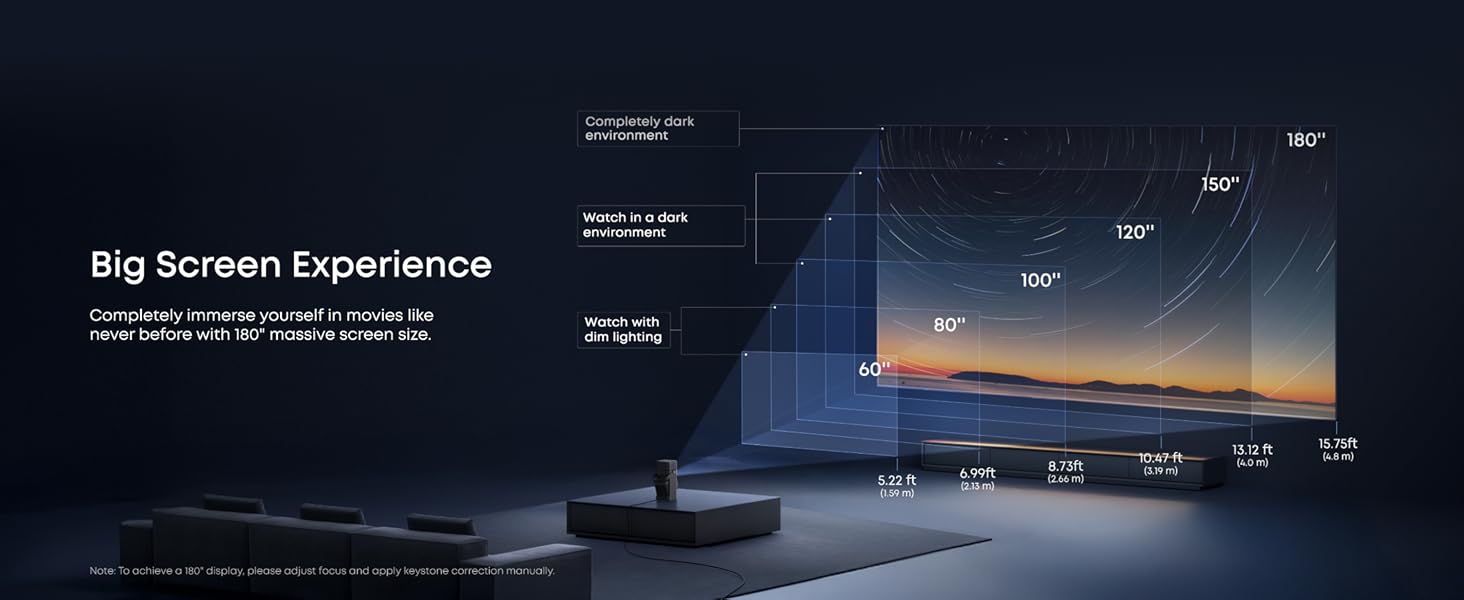
Compact Portable Design with Big Screen: Lightweight body with an integrated carry handle lets you take your entertainment anywhere. Enjoy a stunning 180"" max projection indoor or outdoor with up to 20 hours of speaker playtime.
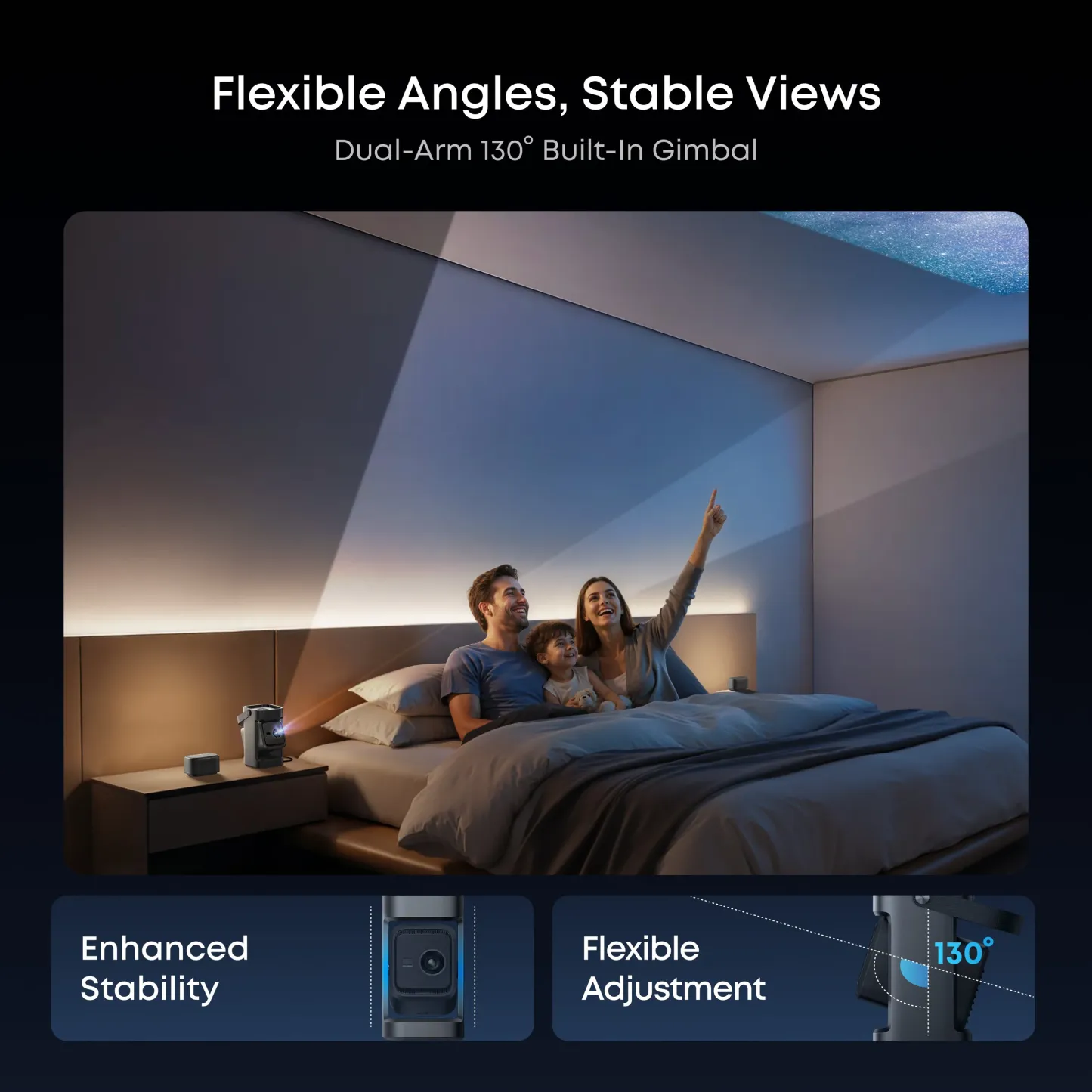
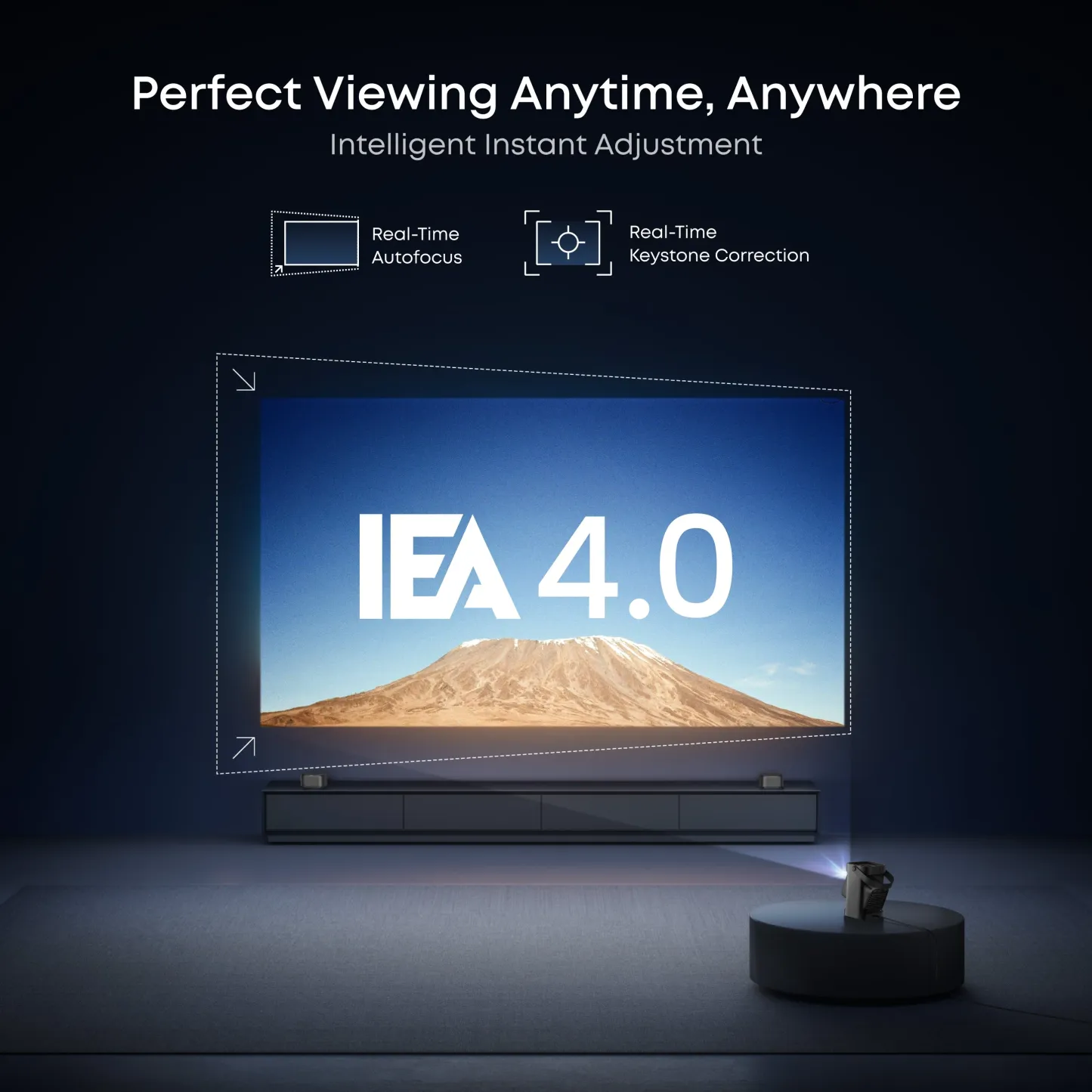
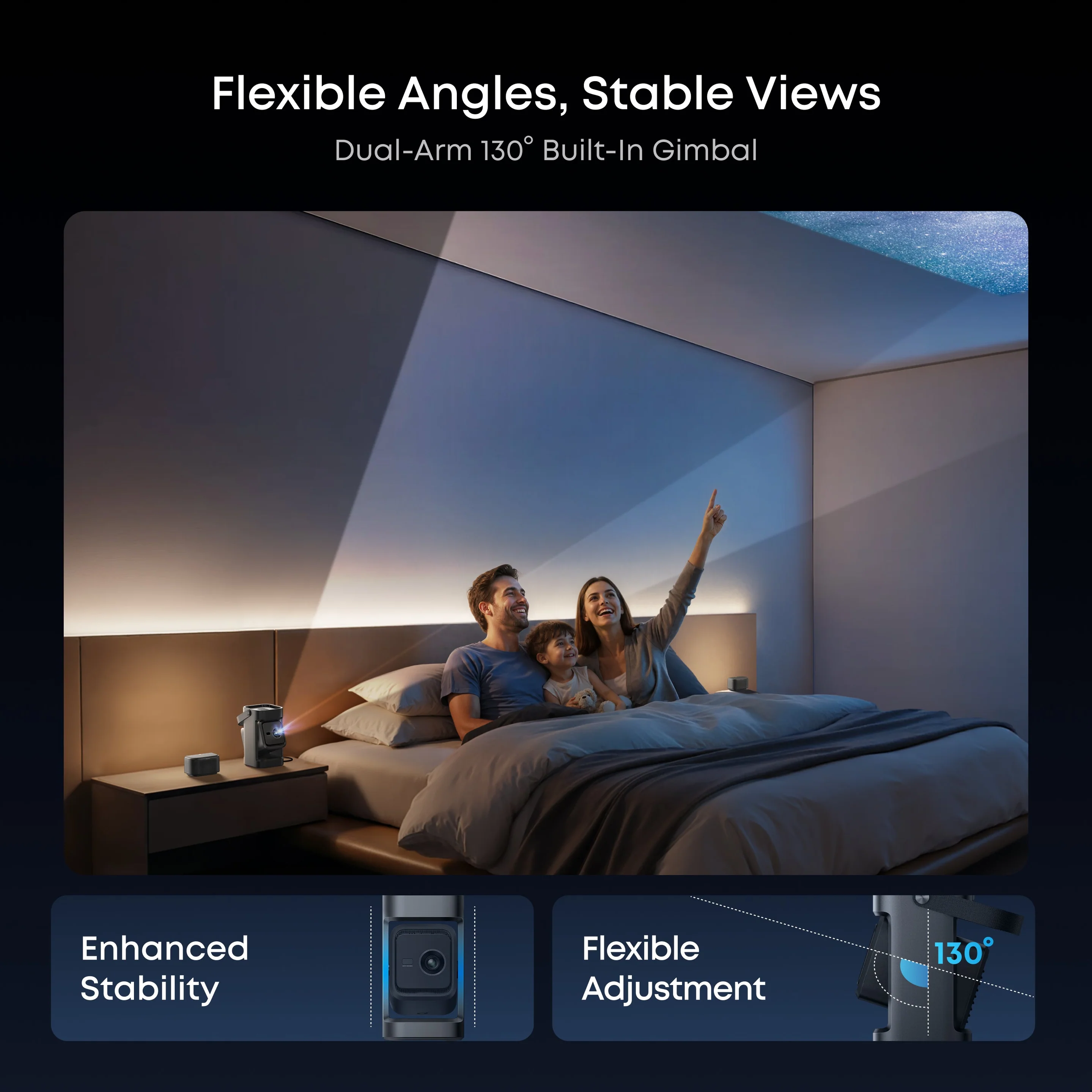
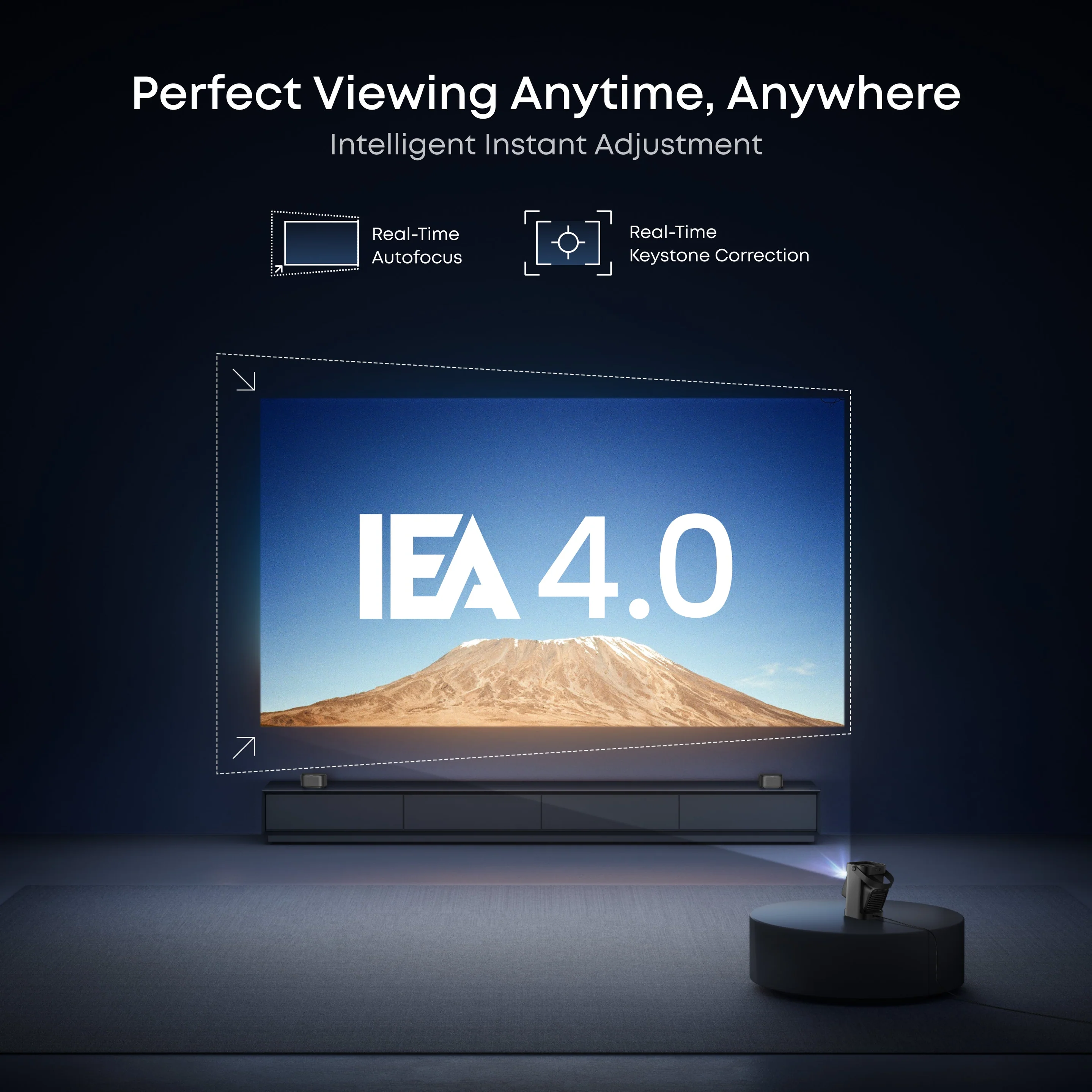
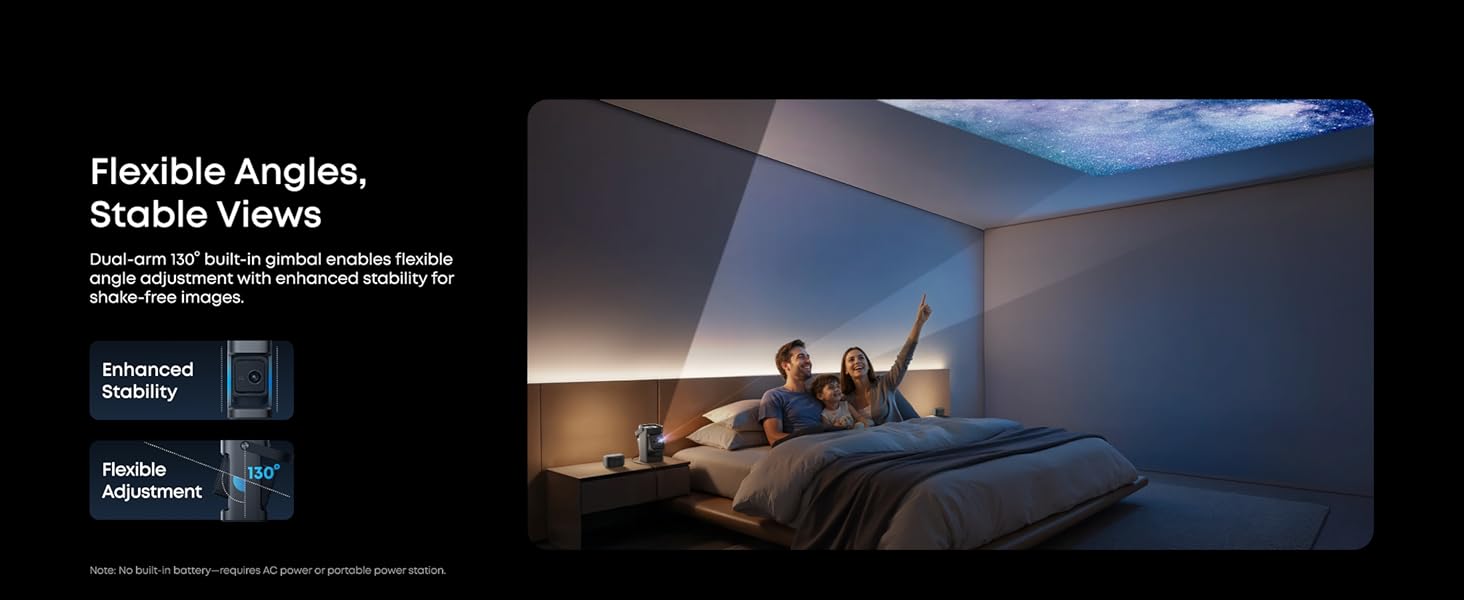
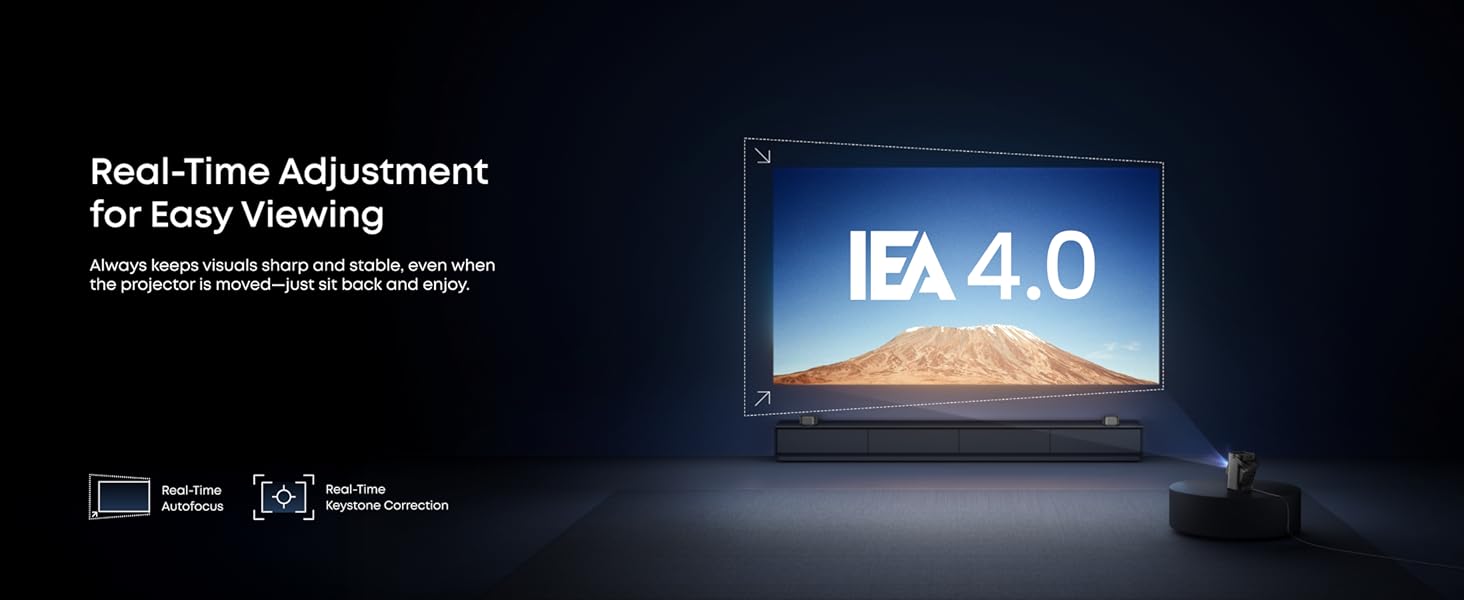
Effortless Viewing with Instant Adjustment: With real-time autofocus and keystone correction, pictures are perfectly aligned even when moved. Dual-arm 130° built-in gimbal enables flexible angle adjustment with enhanced stability for shake-free images.
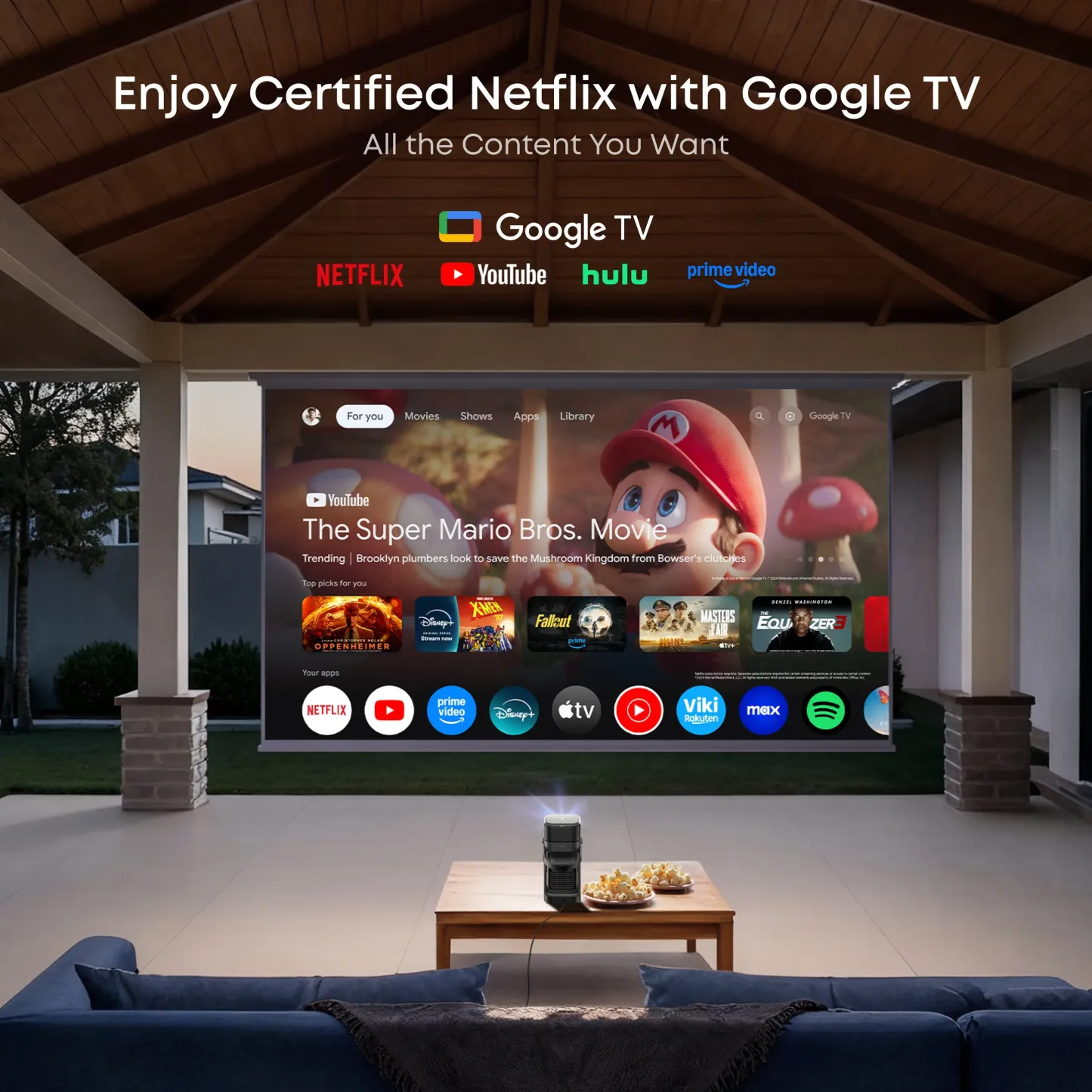
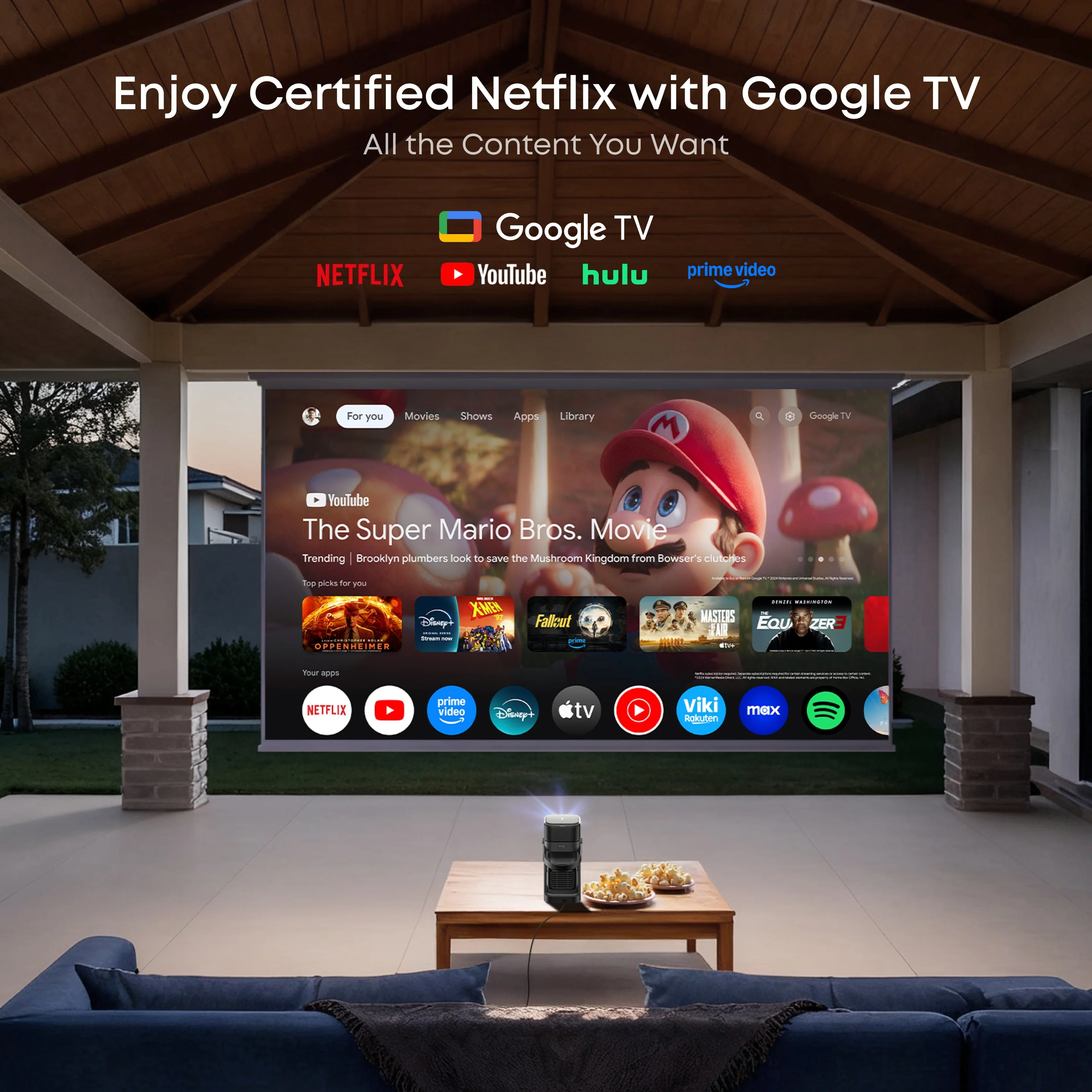
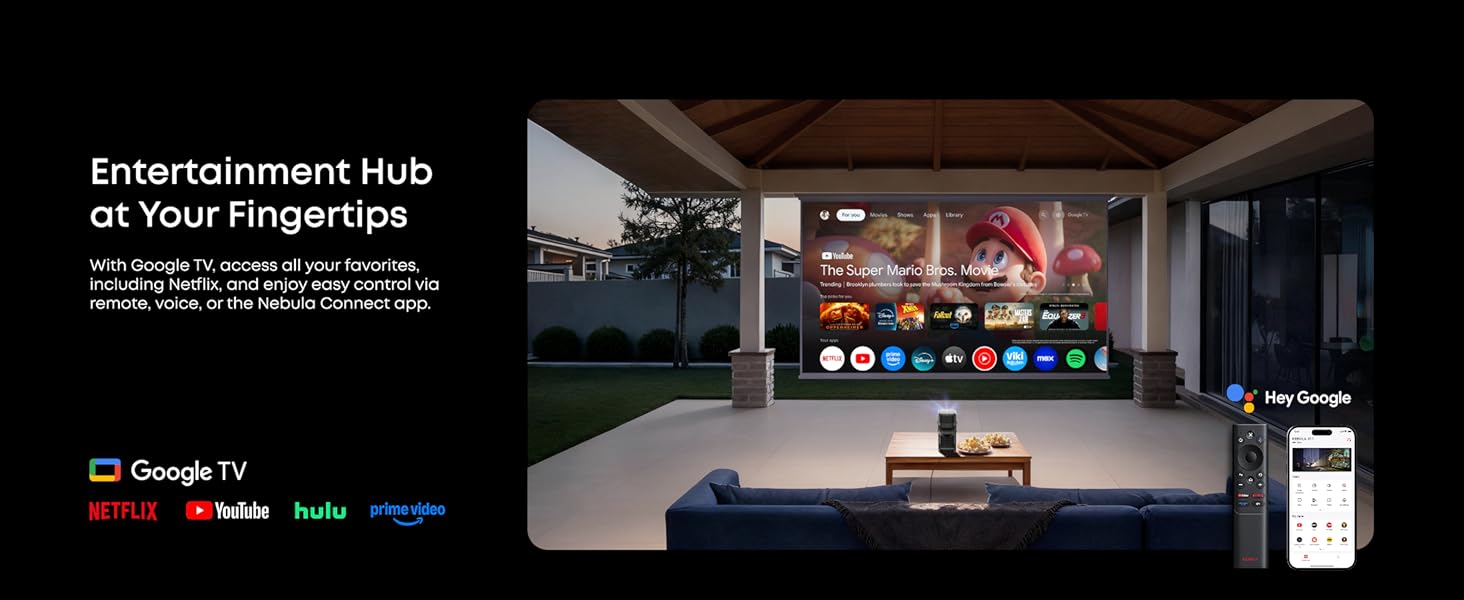
Google TV with Endless Streaming Choices: Enjoy over 400,000+ movies and shows via Google TV, including official Netflix — no sideloading or dongles required.
Feature Highlights
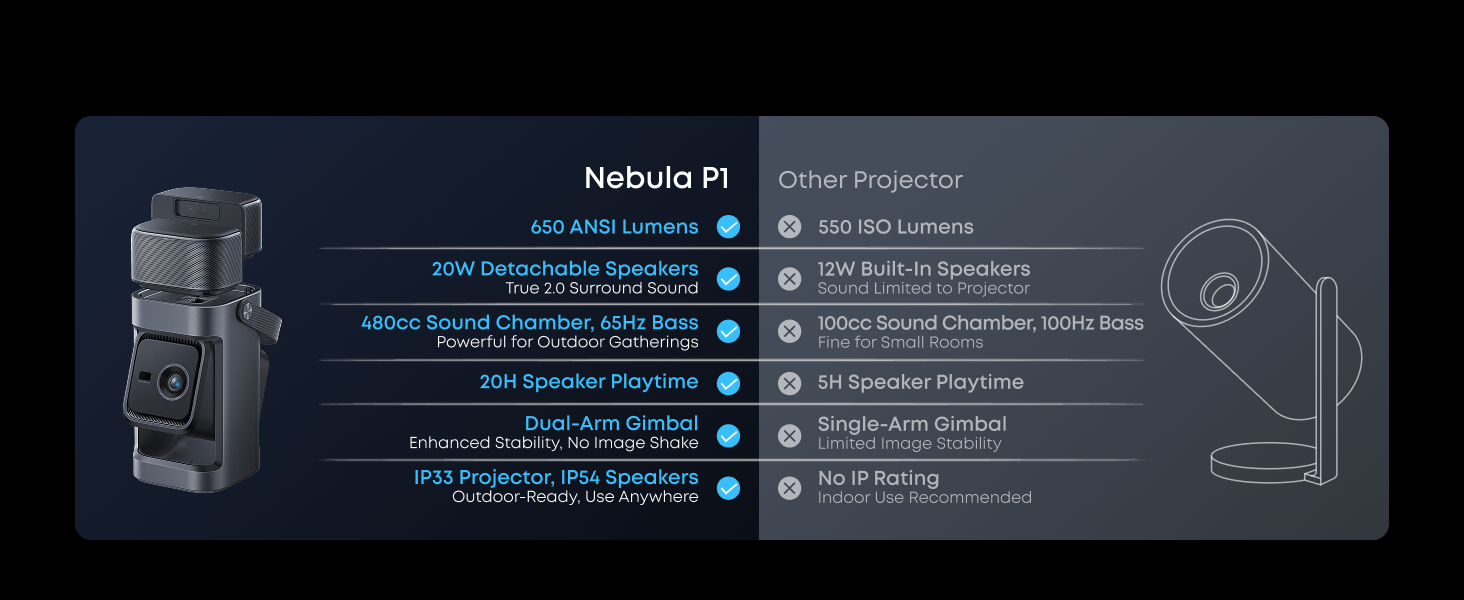
Feature Comparison
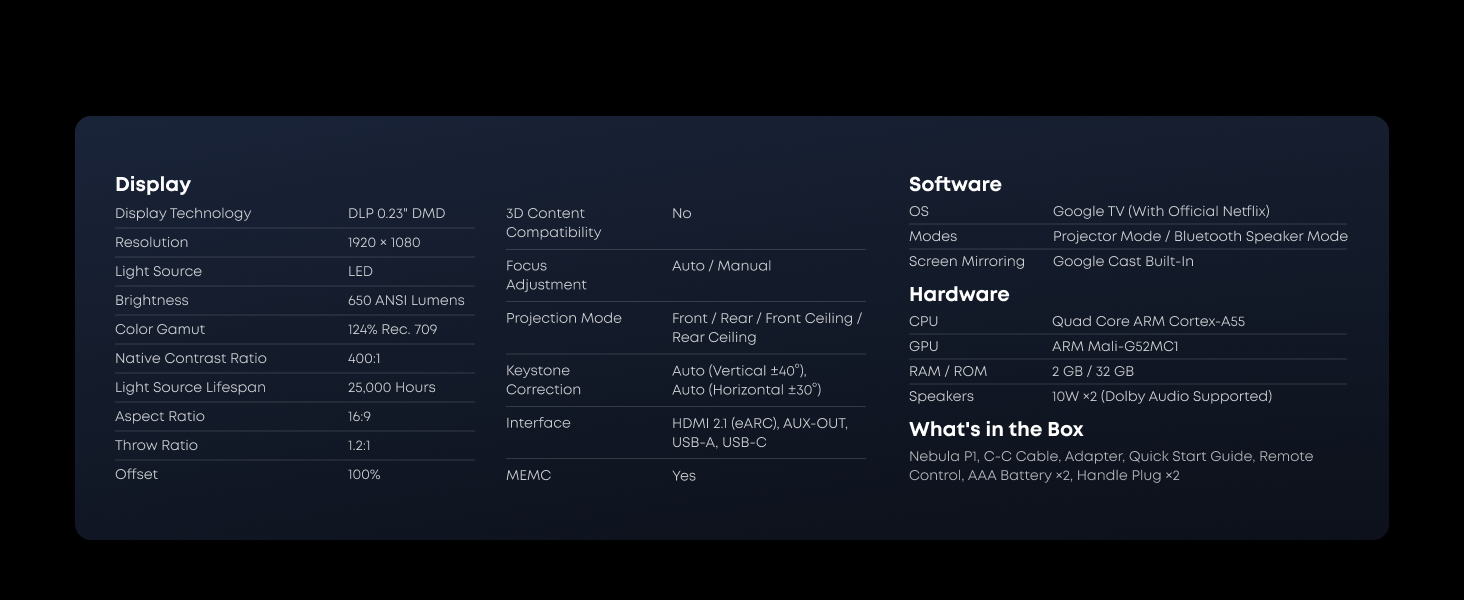
Technical Specs
Wider Soundstage
Flexible Placement
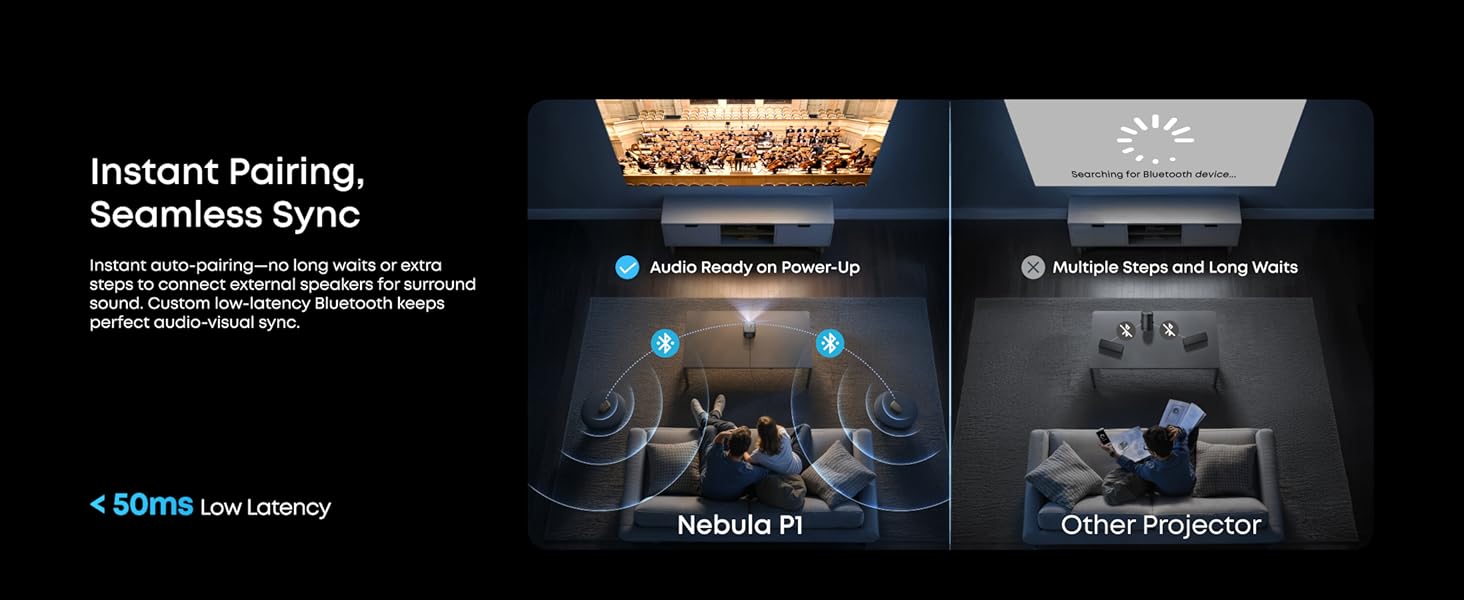
Audio Instant Ready
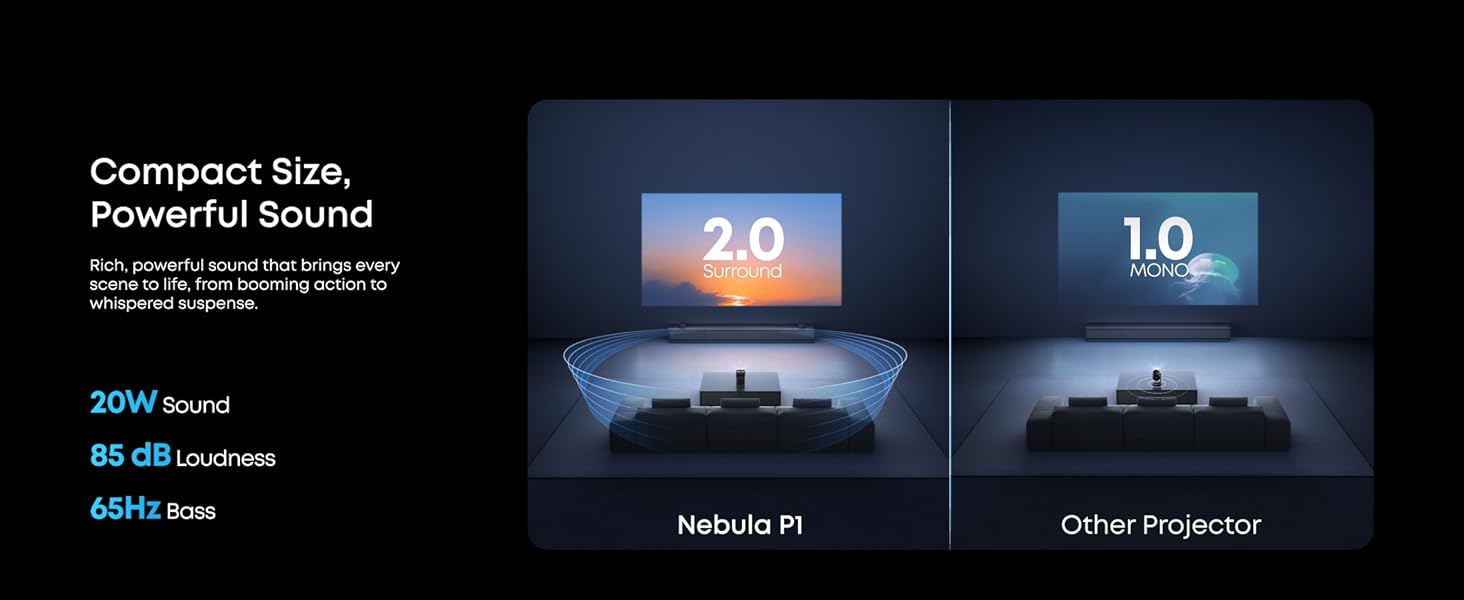
Powerful Sound
20H Speaker Playtime
Higher Brightness
Lasting Clarity
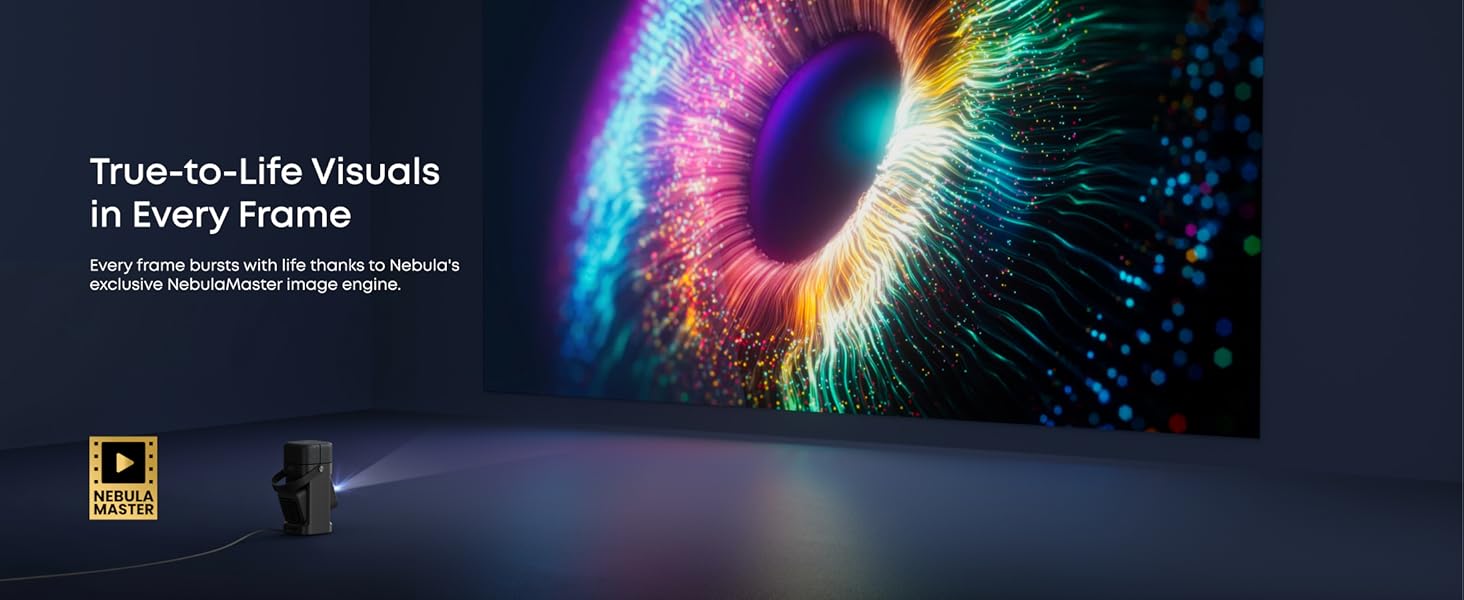
True-to Life Visuals
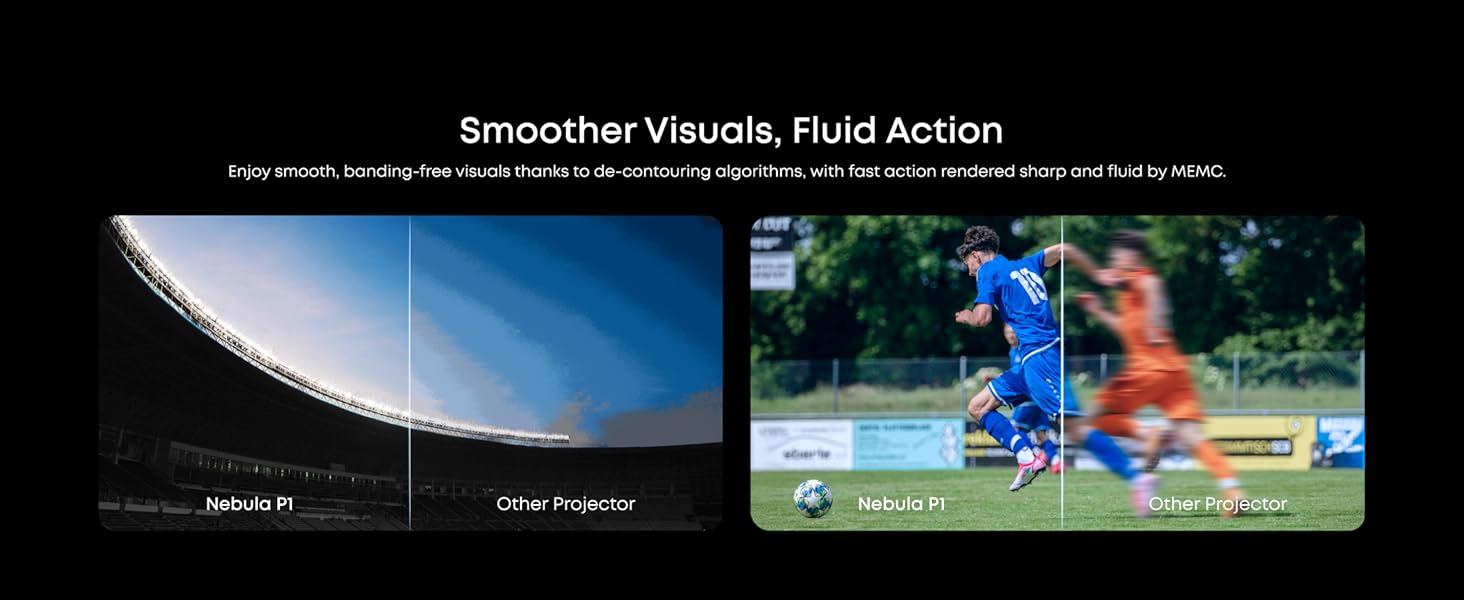
Smoother Visuals
180" Max Screen
Dual-Arm 130° Gimbal
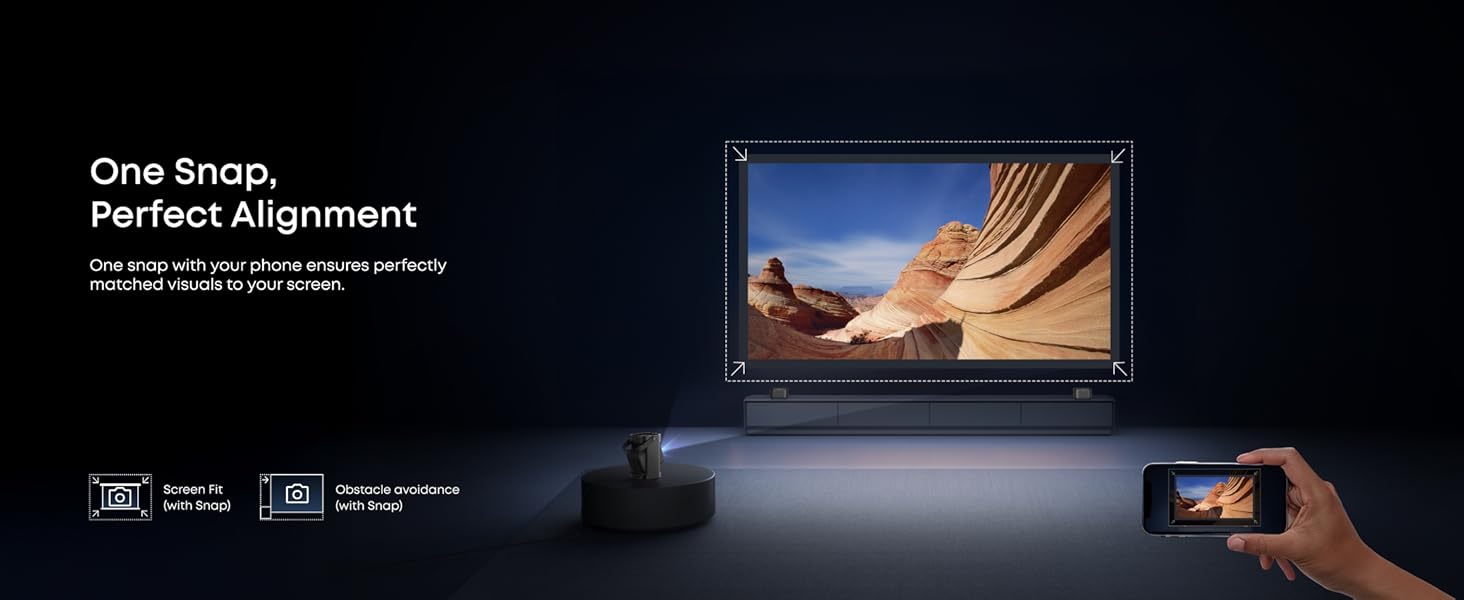
Smart Setup
Snap Fit
Official Netflix
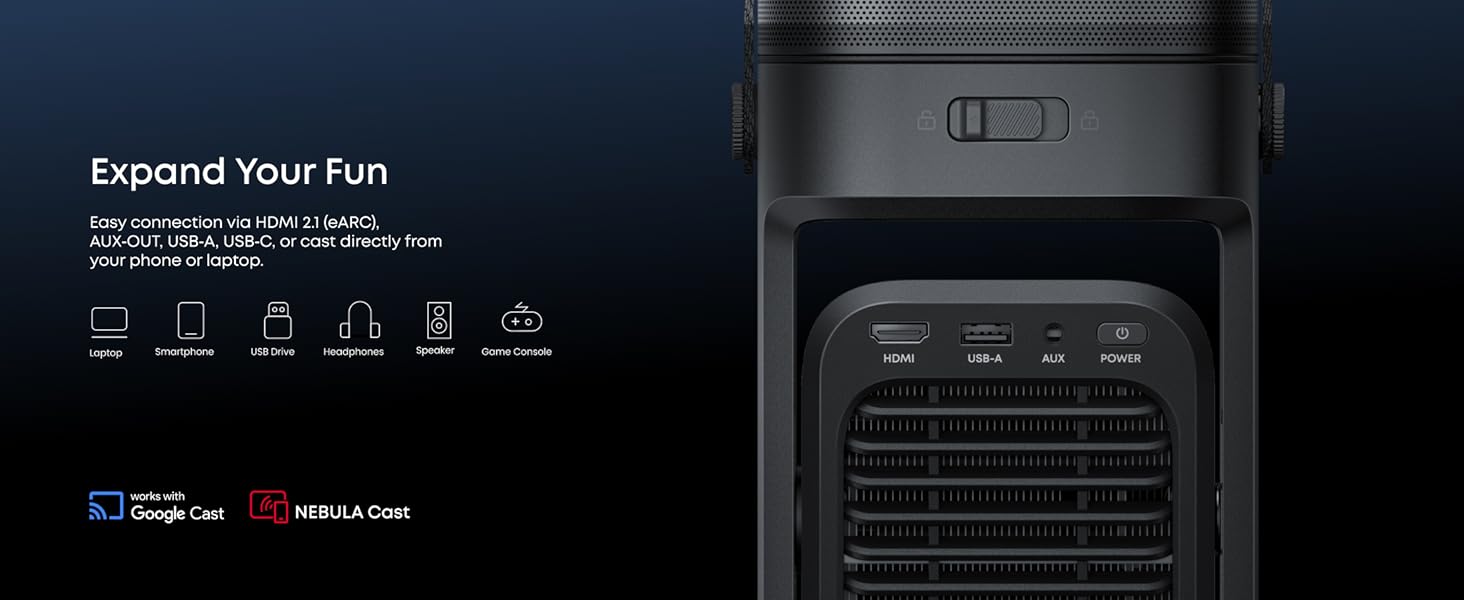
Broad Connectivity
Carry Anywhere
Camping Entertainment
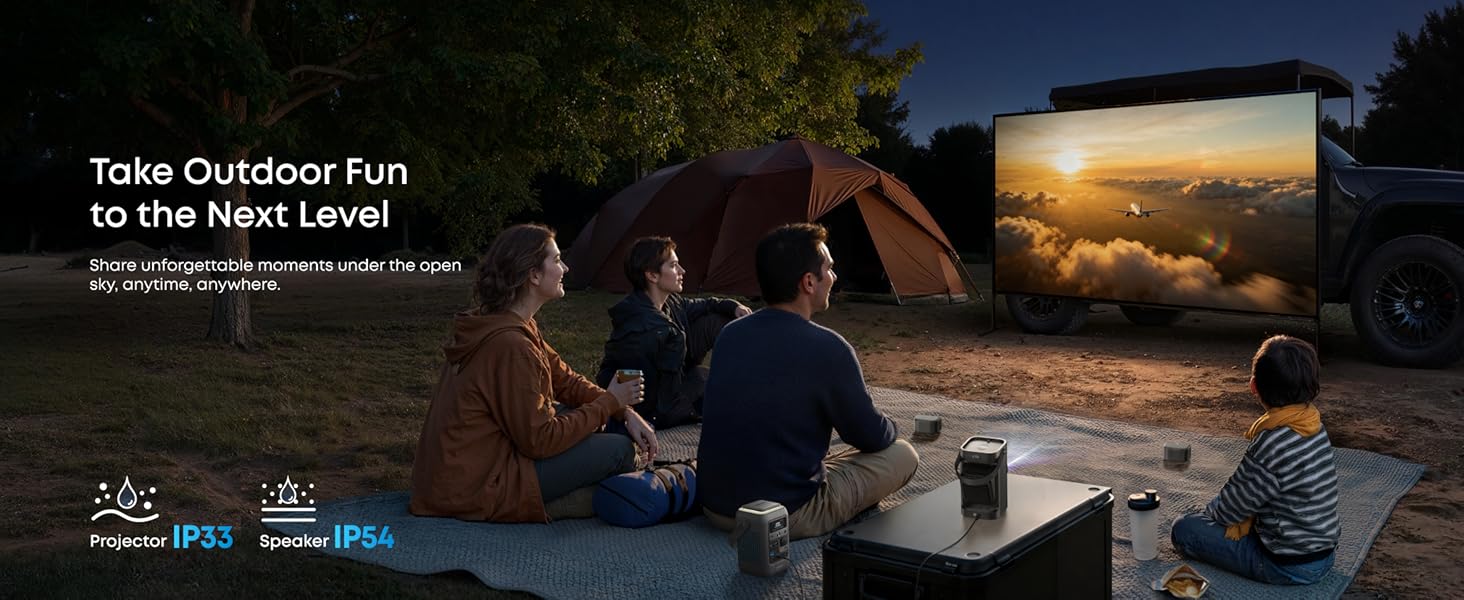
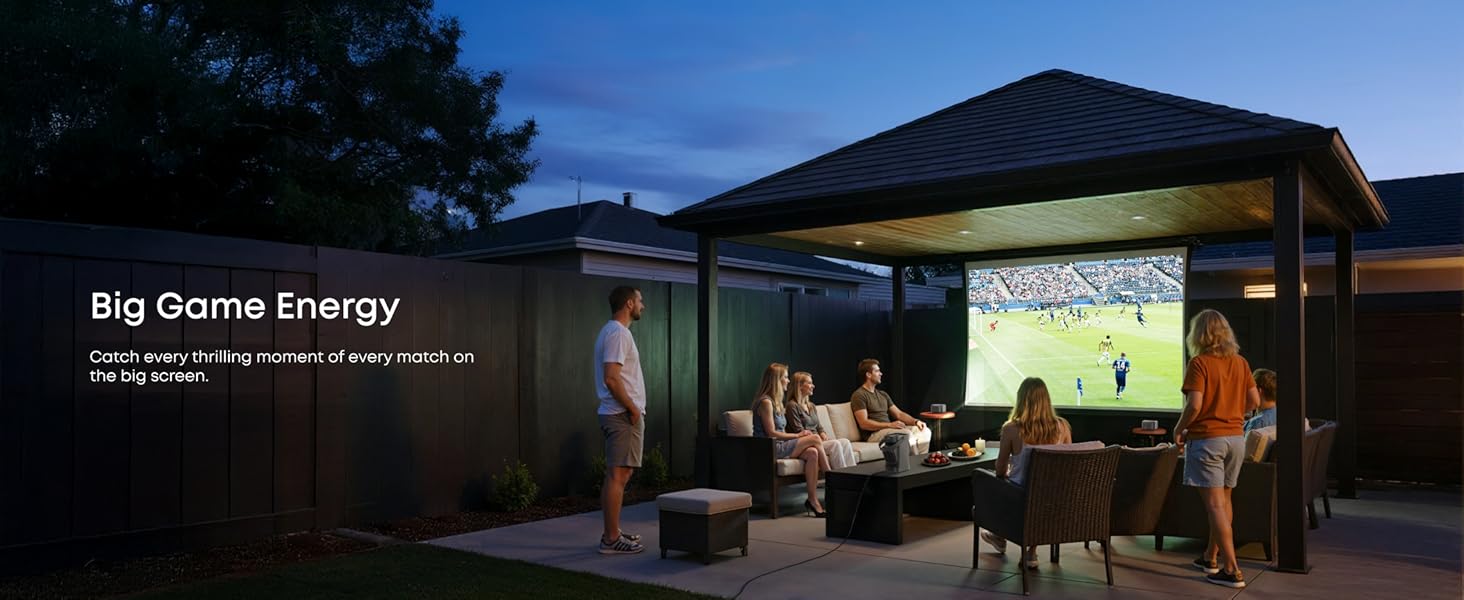
Backyard Gathering
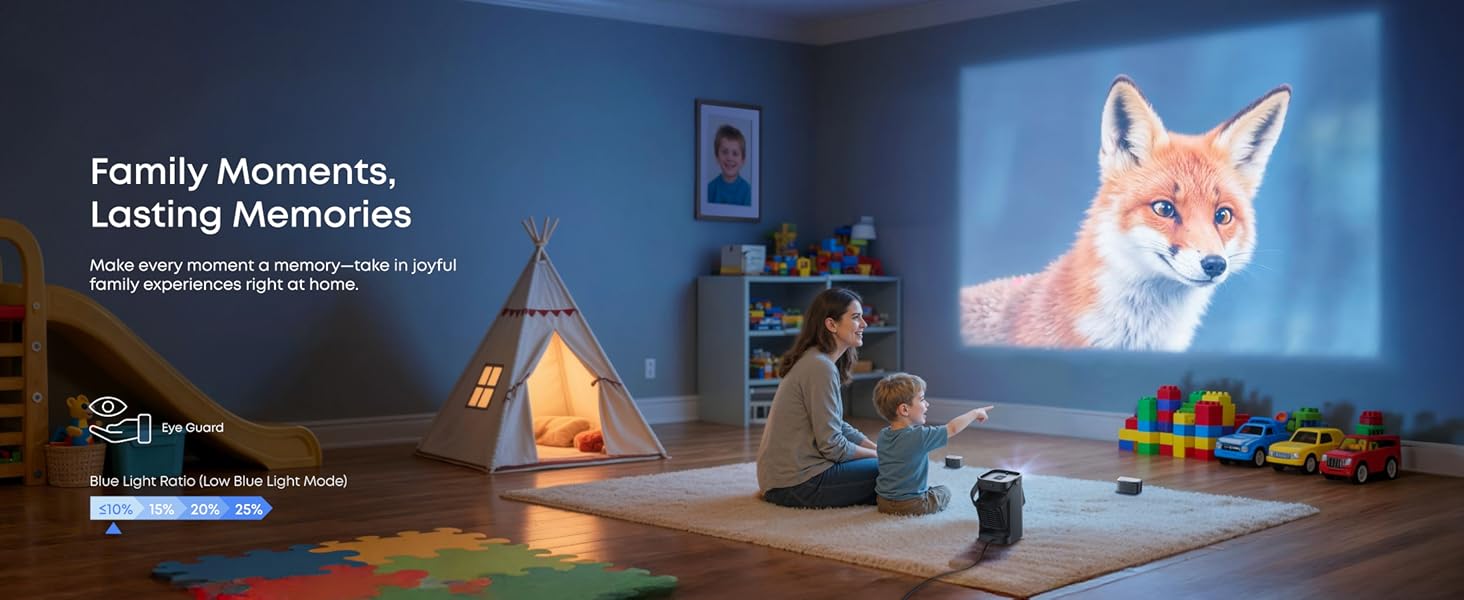
Family Moments
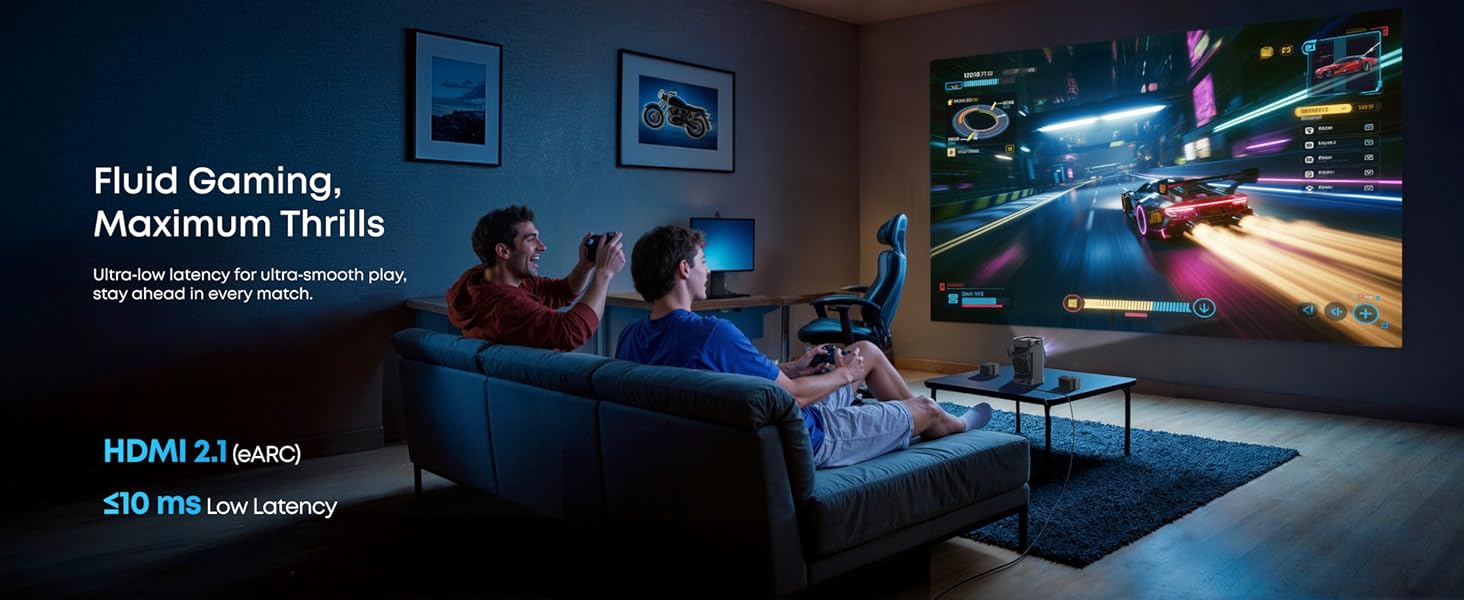
Fluid Gaming
FREQUENTLY ASKED QUESTIONS
What should I do if the Nebula P1 firmware update fails?
1. Try a Wi-Fi network or cellular hotspot with a stronger signal. 2. To update the system version, go to all settings > system > about > system update. - The device will reboot during this time. - There may be a 2–3 minute system delay after the update and reboot. 3. To update the speaker version, go to all settings > Remotes & Accessories > Speaker L/R > Accessory update. - The whole upgrade process will take about 25 minutes. 4. To update the remote control version, go to all Settings > Remotes & Accessories > Nebula Remote > Remote Update. - If you are unable to receive the above update, please retry. - If after retrying you are still unable to receive the update, you will need to provide your SN (Serial Number). 5. To view the SN, go to all Settings > System > About > Status > Serial Number.
What USB drive formats does the Nebula P1 support?
FAT32 / NTFS
How do l fix a projector with delay issues?
This guide will help you understand common causes of projector lag and how to resolve them. 1. Initial Startup Latency When you start your projector for the first time, you might notice some delay. This is usually caused by multiple applications launching at once and competing for system resources. 2. Lag after Firmware Upgrade After updating the projector's firmware, you may experience a short delay of a few minutes. This happens because many applications are initializing simultaneously. 3. Background Application Updates Lag can also occur when background applications update themselves. These updates use system resources and temporarily affect performance. 4. Identify the Type of Lag Before troubleshooting, determine whether the lag occurs during video playback or system navigation: - Video Playback Lag: Only happens during video playback and may be related to network issues or the video application. - System Operation Lag: Noticeable when opening menus or moving focus in the system interface. 5. Steps to Reduce Lag - Update the projector firmware to the latest version. - Update all applications: Go to Settings > Applications > Manage Updates > View Available Updates > Updates. Select "Update All" if updates are available. - Disable automatic app updates: Go to Settings > Apps > View all apps > Show system apps > Google Play Store. Tap your avatar, then Settings > Update apps automatically > Do not update apps automatically. You will need to manually check for updates after this. - Turn off app content recommendations: - For Google TV: Settings > Accounts & Profiles > Select your profile > Turn on Apps Only Mode. Note: You cannot download new apps in this mode. - For Android TV: Scroll to the bottom of the Home screen > Customize Home Screen > Turn off app content recommendations > Promoted Channels > Close Apps > Spotlight. 6. Contact Support If lag persists, contact Nebula Customer Support (support@seenebula.com) and provide the following: - Name of the application causing the delay or description of when it occurs. - Serial number of the projector. - A video showing the lag. - Mode of any connected external devices (TV boxes, USB drives, game consoles, speakers, etc.). - Remaining storage space: Settings > System > Storage > Internal Shared Storage > Available.
What should I do if the application crashes?
1. Try another Wi-Fi network. 2. Check that your time zone is accurate. Go to Settings > System > Date and Time. 3. Go to Settings > Apps > See All Apps > App Name > Clear Cache. 4. Go to Settings > System > About > Reset > Factory Reset to reset.
What should I do if my Google TV Nebula projector screen goes black or flickers?
Reusable https://support.seenebula.com/s/article/What-Should-I-Do-if-My-Google-TV-NEBULA-Projector-Has-a-Black-or-Flickering-Screen
After powering off and restarting the projector, press the power button on the remote control to turn it on again, and then press “Volume Down” button quickly and continuously to enter Data Erase Mode. Note: This method may not succeed on the first try and may require multiple attempts. Wait for the erase process to complete and then you can start the device normally. The erasing process will delete all local files and data.
What should I do if my Nebula P1 projector won't turn on?
Why is there dust on my Nebula P1 lens?
What should I do if my Nebula P1 is not receiving a signal via HDMI?
What should I do if Nebula P1 is out of focus?
What should I do if my Google TV Nebula projector does not connect to Wi-Fi or disconnects frequently?
How do I pair a remote with a Nebula P1?
How does the HDMI function work and what are dual HDMl input / output scenarios?